End-User Notifications
Configuring Policies and Understanding Tray Behavior
This guide explains how to configure Automox policies Represents a set of logic statements that define the desired target state of a device, the allowed remediation schedule, and configuration parameters around how that remediation should take place. that deliver update A minor version update to a patch or package, usually involving bugfixes and no major functionality changes. For example, updating a package from version 1.13 -> 1.14 and restart notifications Configurable end user messaging sent by AXP. to end users Represents a set of login credentials and contact information for an external user. A user is associated with an account. Once created a user should get privileges granted to act:
- at an account level
- at an organization level through the Automox Tray System tray application that works with the Automox Agent to deliver end-user notifications.. These notifications are deadline Date/time by which a user must act before the system enforces the action (Agent 2.1+).-based, giving users a defined window to install updates or restart their devices A subset of Assets, a general term denoting anything that runs the Automox Agent and is registered with the system. before enforcement occurs. The guide also outlines what users will see in the tray so administrators can anticipate the end-user experience and ensure compliance with patching requirements.
Represents a set of logic statements that define the desired target state of a device, the allowed remediation schedule, and configuration parameters around how that remediation should take place. that deliver update A minor version update to a patch or package, usually involving bugfixes and no major functionality changes. For example, updating a package from version 1.13 -> 1.14 and restart notifications Configurable end user messaging sent by AXP. to end users Represents a set of login credentials and contact information for an external user. A user is associated with an account. Once created a user should get privileges granted to act:
- at an account level
- at an organization level through the Automox Tray System tray application that works with the Automox Agent to deliver end-user notifications.. These notifications are deadline Date/time by which a user must act before the system enforces the action (Agent 2.1+).-based, giving users a defined window to install updates or restart their devices A subset of Assets, a general term denoting anything that runs the Automox Agent and is registered with the system. before enforcement occurs. The guide also outlines what users will see in the tray so administrators can anticipate the end-user experience and ensure compliance with patching requirements.
Part 1: Setting Up End-User Notifications in a Policy
Overview
Automox uses policy settings to control whether users receive notifications for installing updates and restarting their devices. These notifications are delivered through the Automox tray on Windows and macOS.
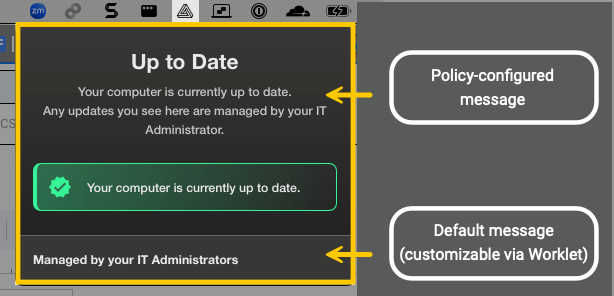
A configurable option for end users to permit a level of control over platform actions on their device. The ability to delay a platform action on their device (ex: patching, reboot) settings from your current patch A software security or stability update. and restart policies and uses them to calculate and display a single restart deadline to end users. Custom notification messaging is supported: Policy-configured messages (such as restart warnings or app closure notices) appear in the upper section of the tray notification.
Customizable default messaging: You can use a worklet
Represents an automation script that can execute on a set of devices, consisting of evaluation and remediation code blocks. Worklets can be OS-specific or targeting a platform-agnostic language. to update the bottom section of the tray message. This area can display a trusted message provided by an authorized IT administrator or service provider. This requires Agent Lightweight client application, which is installed on managed devices. version 2.3.34.- Devices must have Automox Agent version 2.2.24 or later installed. See Agent 2.2.24 Release Notes.
- You must have the required permissions Actions associated with a default or custom roles. to configure policies. See Roles and Permissions Management.
Default User Notifications
You can access Assets/abilities associated with default or custom roles. a policy and view the user notification settings from the Automate → Policies page in the console Our web-based management dashboard, available at https://console.automox.com.. This table lists the default settings and their descriptions for when you create a new policy. Be aware that there are behavioral differences compared to the previous notification management. (If you have an agent version earlier than 2.1.44, refer to Managing End-User Notifications).
|
Default User Notification Settings |
Description |
Console View |
|---|---|---|
|
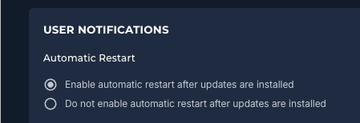
Enable automatic restart after updates are installed |
This is selected by default. This means that (for updates that require a restart) after an update, the device automatically restarts the operating system. |
|
|
Install Notification Settings |
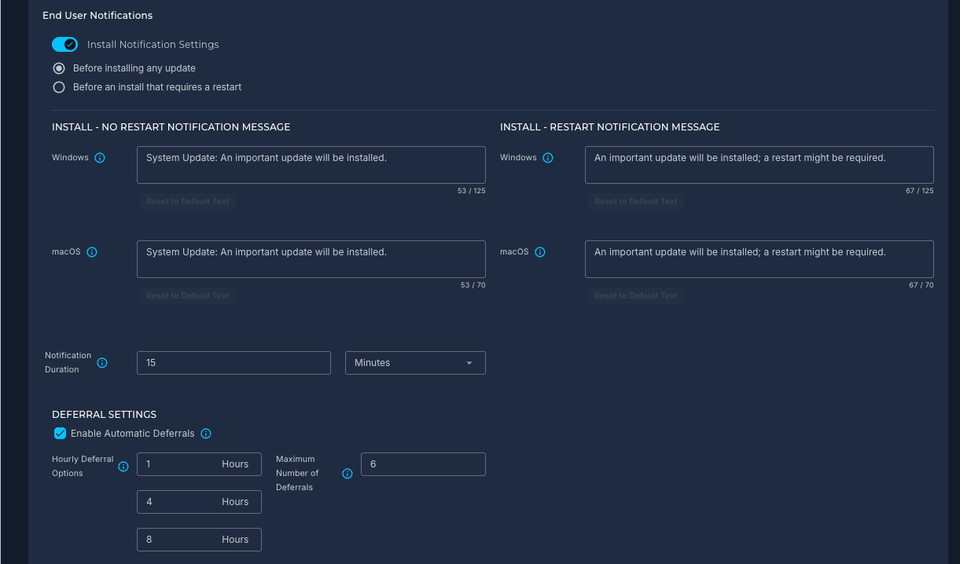
This is on by default. End users receive a tray notification when an update is available. The corresponding message can be customized. See Custom Install Notifications. |
|
|
Before installing any update |
This is selected by default. The notification message is sent before any update install. |
|
| Do Not Disturb (DND) | You can configure how notifications are handled when a device has Do Not Disturb (DND) enabled. The default setting is Bypass DND: Notifications are always shown, even if the end user has DND enabled. See Do Not Disturb (DND)for details. | 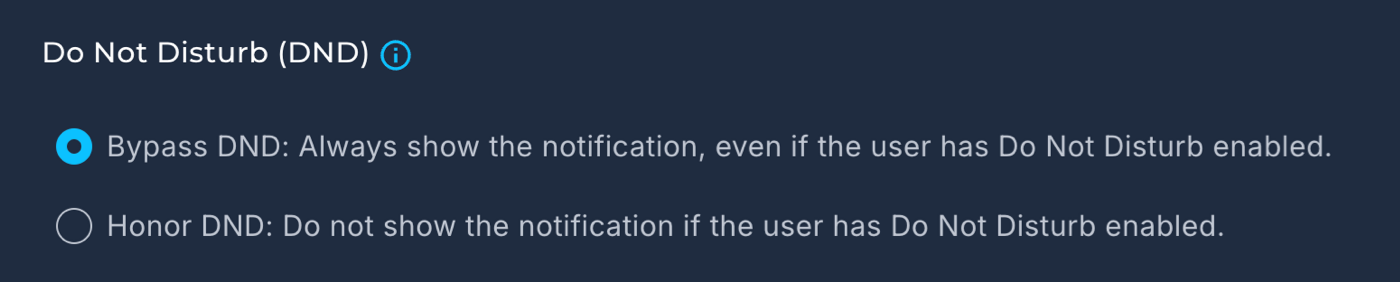
|
| Install Deadline | This represents the amount of time the user has to complete the installation. | 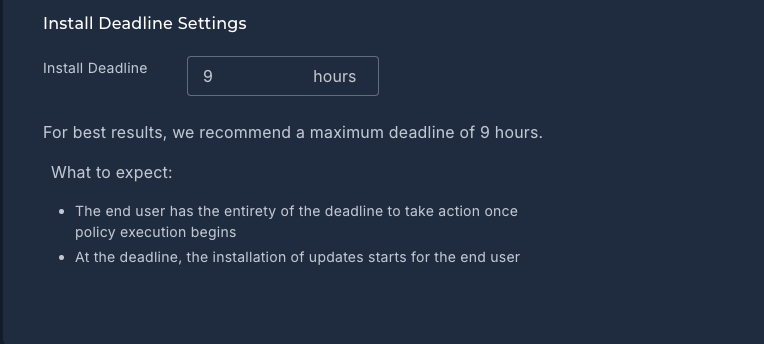
|
|
Restart Notification Settings |
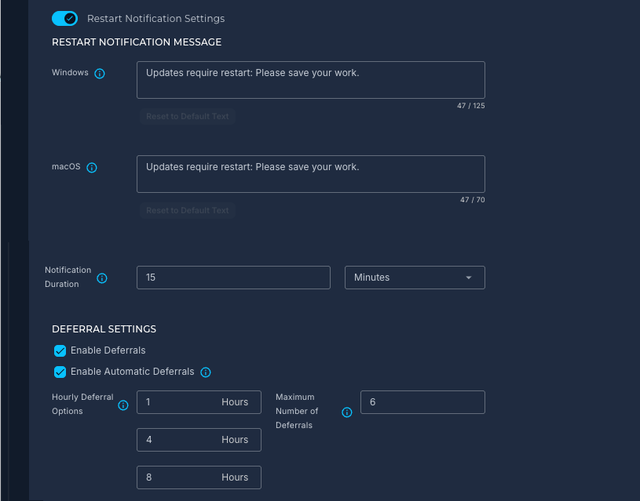
This is on by default. If the update requires a restart, the end users receive a tray notification, as described in Part 2: What Users See in the Automox Tray. The corresponding message can be customized. See Custom Restart Notifications. |
|
| Restart Deadline | This represents the amount of time the user has to complete the restart from the tray prompt. | 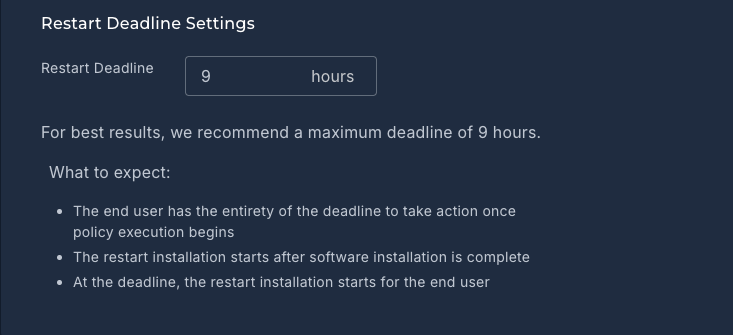
|
What to expect for default user notifications
If you choose to use the default settings for a policy, the end user can expect the following:
For Install Updates:
- The end user has this entire time to complete the installation.
- At the deadline, the installation of updates starts for the end user.
For Restart Updates:
- The end user has this entire time to complete the restart.
- The restart installation starts after software installation is complete.
- At the deadline, the restart installation starts for the end user.
Refer to Part 2: What Users See in the Automox Tray for details about what a user experiences.
How to Configure User Notifications
Follow these steps to configure end-user notifications that are based on a deadline.
Create or Edit a Policy
- Navigate to the Policies section in the Automox console.
- Create a new policy or edit an existing one that governs update and restart behavior for your target devices.
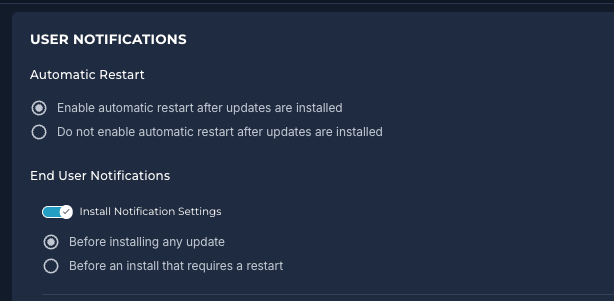
- Go to User Notifications → Automatic Restart:
- Select Enable automatic restart after updates are installed if you want the device to restart automatically after updates are applied.
- Select Do not enable automatic restart after updates are installed if you want the user to manually initiate the restart.
Enable End-User Notifications
Two user notification settings are available. You can enable one or both depending on how much control you want to give the user.
How the system handles the execution and endpoint restarts depends on the policy's Automatic Restart configuration:
- Silent Policies (Automatic Restart: Disabled)
- Background Execution: The policy executes background updates immediately without waiting for the user to approve prompts or complete actions from other active policies.
- Restart Handling: Because Automatic Restart is disabled, these policies will never trigger a system restart.
- Silent Automated Policies (Automatic Restart: Enabled)
- Background Execution: The policy bypasses any active "Pending User" blocks to execute its scheduled installations immediately.
- Consolidated Remediation & Restart: A system restart will only occur if Automatic Restart is enabled and an installed package (from either the current silent policy or the pending policy) requires a restart. If a restart is required, the sequence will simultaneously process and finalize all pending installations and restart requirements from the deferred interactive policy. This effectively clears the device's backlog and brings the endpoint into full compliance in a single, consolidated cycle.
Install Notification Settings
Go to End User Notifications → Install Notification Settings.
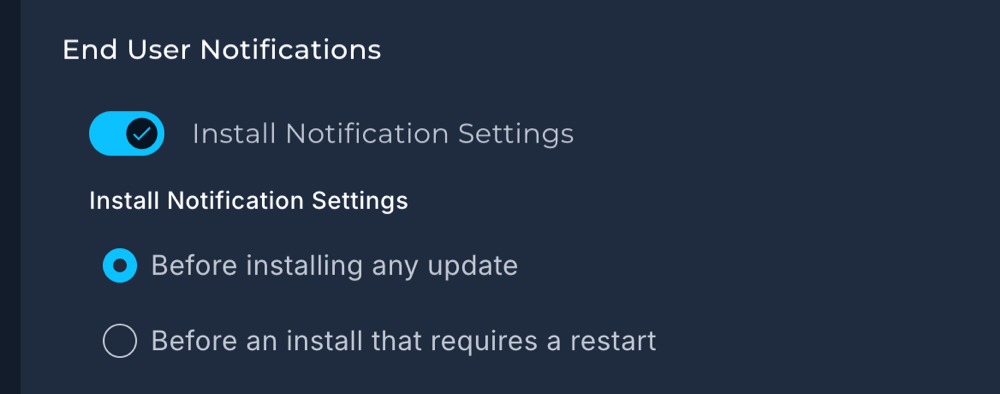
- Turn on notifications if you want users to receive a message when an update is available.
- This is useful for updates that do not require a restart but still need user action.
- The tray will show a deadline to install the update.
- Turn off notifications if you do not require users to take action on available updates.
Restart Notification Settings
Use this setting to control whether users are notified when a restart is required after updates.

- Turn on Restart Notification Settings: End users receive a tray notification when a restart is required. A specific deadline is shown, and reminders appear leading up to the deadline.
- Turn off Restart Notification Settings: No restart notifications or reminders are shown in the tray.
- Note: Automatic Restart must be enabled to use this setting.
Users can restart their device either by selecting the Restart Now button in the Automox tray or by using the operating system's standard restart options (such as the Start menu in Windows or the Apple menu in macOS). Both methods are supported and will satisfy the policy requirement.
If you want users to be notified about both installations and restarts, both settings must be turned on.
Do Not Disturb (DND)
You can configure how notifications are handled when a device has Do Not Disturb (DND) enabled. On macOS this setting is called Do Not Disturb, and on Windows it is known as Focus mode. In the Automox console, the Do Not Disturb (DND) setting applies to both.
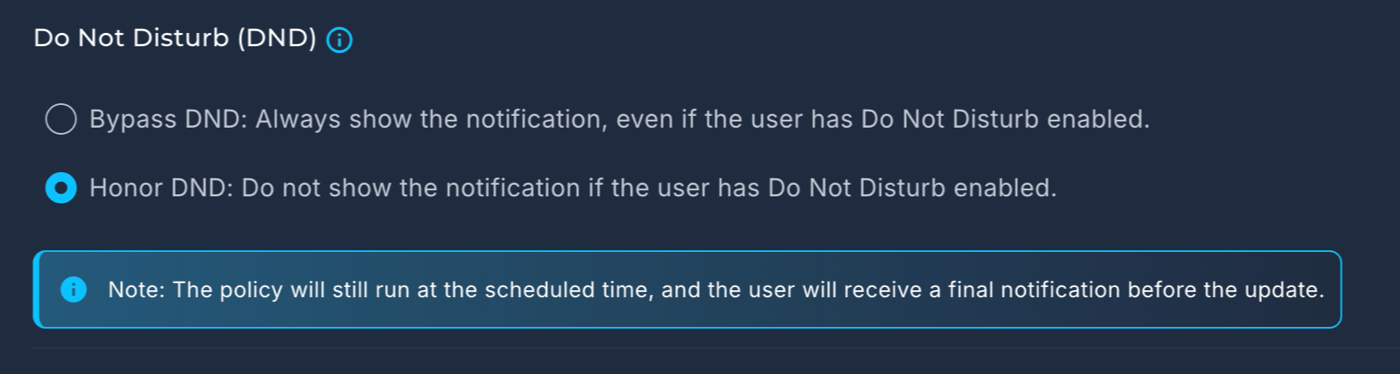
- Bypass DND (default): Notifications are always displayed on the device, even if the user has Do Not Disturb enabled. This ensures that users receive update and restart reminders according to the policy schedule, regardless of any local preference to suppress notifications.
- Honor DND: Notifications are suppressed when Do Not Disturb is enabled on the device. This allows users to avoid interruptions while Do Not Disturb is active. However, the policy is still enforced at the deadline, and users will still be notified five minutes and one minute prior to enforcement.
- When you select Honor DND, users do not receive regular reminders while Do Not Disturb is active. They only see the final notifications at five minutes and one minute before the deadline. Consider whether suppressing reminders could reduce user readiness for updates or restarts.
- Do Not Disturb (DND) functionality requires Automox agent 2.4+.
- This feature is currently not supported on macOS Tahoe or Windows Servers.
See also Automox Tray and End-User Notifications FAQ for details about platform-specific behavior when Do Not Disturb is enabled or disabled on a device.
Save and Apply the Policy
After configuring the notification settings, click Create Policy or save your edits. Devices assigned to the policy will begin receiving deadline-based notifications in the Automox tray.
Part 2: What Users See in the Automox Tray
This section explains how notifications configured in a policy appear to end users through the Automox tray. Understanding this behavior will help you support users and ensure policy settings produce the intended experience.
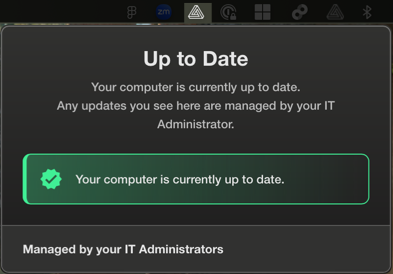
Automox Tray Overview
- The Automox tray is always visible in the system tray on Windows and macOS.
- It shows users the current update or restart status.
- If notifications are enabled in a policy, users see messages prompting them to install updates or restart their devices by a specific deadline.
- Users are reminded as the deadline approaches (reminders apply to both install updates and restarts). Reminder cadence:
- Daily
- 24 hours before deadline
- 3 hours before
- 1 hour before
- 5 minutes before
- 1 minute before
When an Update is Available
If Install Notification Settings are enabled:
- The tray notifies the user that an update is available.
- A deadline appears, indicating when the user must take action.
- Users are reminded as the deadline approaches.
- If the update does not require a restart, the user can install and continue working.
When a Restart is Required
If Restart Notification Settings are enabled:
- A dot indicator on the tray icon means a restart is pending.
- The tray shows a clear restart deadline.
- Users are reminded as the deadline approaches.
These reminders appear even during Do Not Disturb mode. You cannot control the reminder cadence.
Restarting the Device
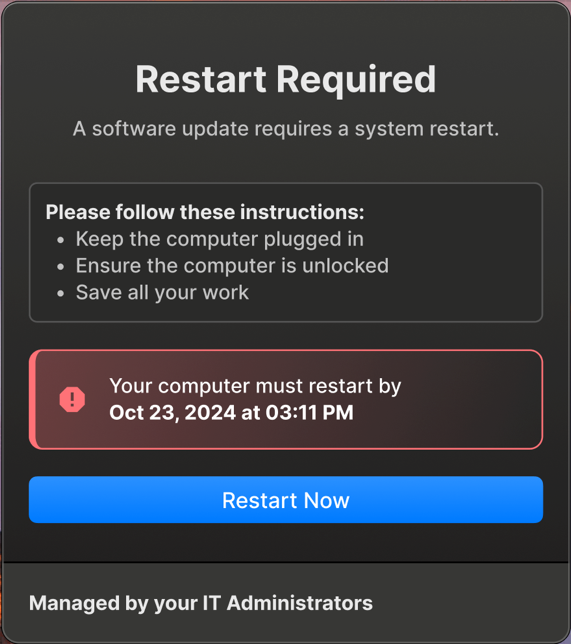
When a restart is required, the tray displays a clear deadline and shows reminders as the deadline approaches. Users can restart their device at any time before the deadline.
Restarting from either the Automox tray or the operating system (such as the Start menu in Windows or the Apple menu in macOS) will fulfill the policy requirement. The tray clears the restart message once the restart is complete.
If the user does not restart before the deadline:
- The system restarts automatically after the final reminder.
- If the device is offline, the restart triggers as soon as it reconnects.
User Workflow Summary
| Scenario | Result |
|---|---|
| Updates Ready to Install: When an update is available, the user is notified that the install is ready to take place. |
Tray shows update available; user sees install deadline
|
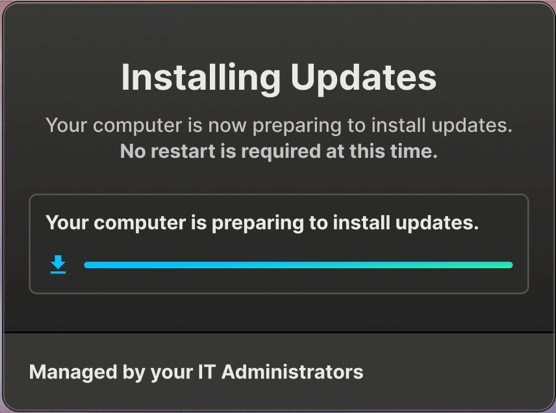
| Install Initiated: After the user initiates the install, the tray displays a notification indicating that the installation is in progress. |
Tray shows installation in progress or completes silently.
|
| Restart Required: When the install is complete and a restart is required, the tray shows a specific restart deadline, indicating when the restart must occur. |
The tray displays a specific deadline by which the restart must happen.
|
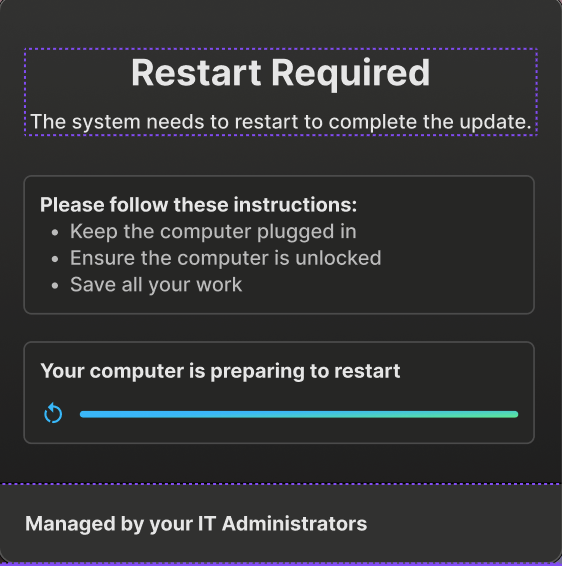
| Restart Initiated: After the restart has been initiated, the tray displays a notification indicating that the restart process has begun. It may take a few minutes for your computer to restart. |
Restart is registered; tray clears the requirement
|
| When the user restarts using OS menu | Restart is registered; tray clears the requirement. |
| Restart deadline passes | System restarts automatically |
| Device is offline at deadline | Restart occurs on next re-connection |
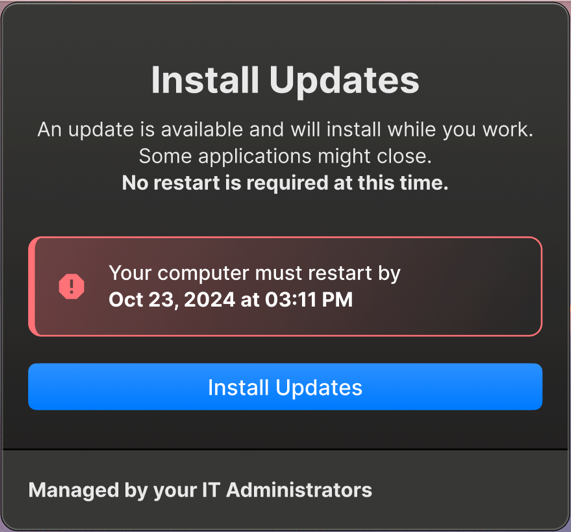
Customizing Notification Messages
You can configure how a user receives notice of an update that is scheduled to be installed or for updates requiring a restart.
Custom Install Notifications
To configure install notification messages, turn on Install Notifications Settings.
If you do not want to use the default message, you can create your own.
- For updates that do not require a restart, configure the Install Message (No Restart Required). Fill in the text box with the messaging of your choice. The message can be up to 125 characters for Windows or 70 characters in length for macOS.
- For updates that require a restart, configure the Install Message (Restart Required). Fill in the text box with the messaging of your choice. The message can be up to 125 characters for Windows or 70 characters in length for macOS.
Custom Restart Notifications
To configure restart notification messages, turn on Restart Notification Settings.
- Under Automatic Restart, select Enable automatic restart after updates are installed.
- Turn on Restart Notification Settings.
Configure the Restart Notification Message for end users:
- You can do nothing and use the default message.
- You can set a custom notification message for restart. Fill in the text box with the messaging of your choice. The message can be up to 125 characters for Windows or 70 characters in length for macOS.
- This message remains in the Automox tray until the update is complete.
What an administrator can expect
The administrator must decide on the required deadline.
- Take into consideration the requirements of the end user to best set the deadline.
- Consider adjusting the notification message to ensure your end users understand how to proceed. Your custom messaging will replace the default message in the Automox tray.
What a user can expect
Install does not require a restart
The user can start the install at any time before the deadline. However, no action is required. The software installs automatically in the background when the deadline is reached.
Install requires a restart
The user sees a notification in the Automox tray and must restart before the deadline. Users can now restart manually outside of the tray or use the Restart Now button in the tray.
When the deadline is reached, the install begins automatically.
