Device Explorer
This document describes how you can create device queries in the Device Explorer using the Device Query. A query acts as a ruleset of criteria that filters devices based on selected attributes. From the main Devices page, select the Device Explorer tab. Initially, all devices in your organization are listed in the table. Use queries to filter this list of devices.
From the Device Explorer page, you can create and save queries that filter devices into lists according to the criteria in the saved query.
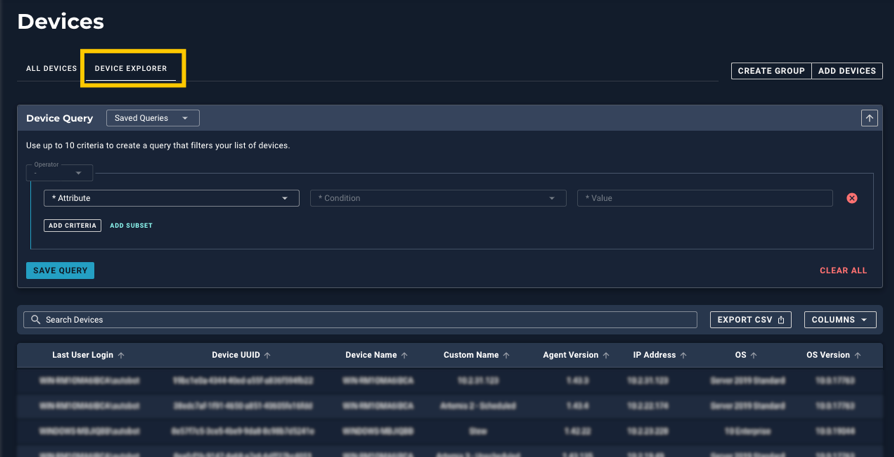
Device Query
Use the Device Query to select conditions and values for the attributes that you want to filter your devices by. Each criterion consists of an attribute, a condition, and a value.
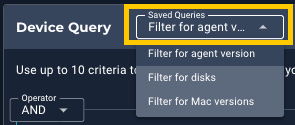
Saved queries appear in the query selector, and you can reuse, duplicate, and amend them. The list of devices below the query updates as you work and can be exported to a CSV file.
Creating a query
Follow these steps to create a query. Refer to the Attributes Reference list for details about each attribute.
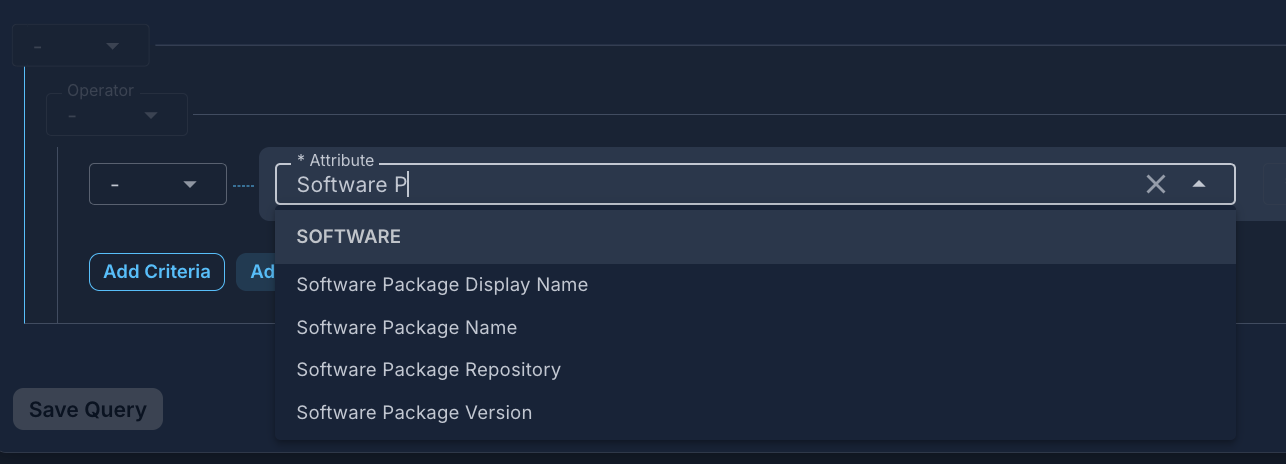
- Open the Attributes drop-down list and select an attribute. This field is searchable and organized by scope. See Attributes reference .
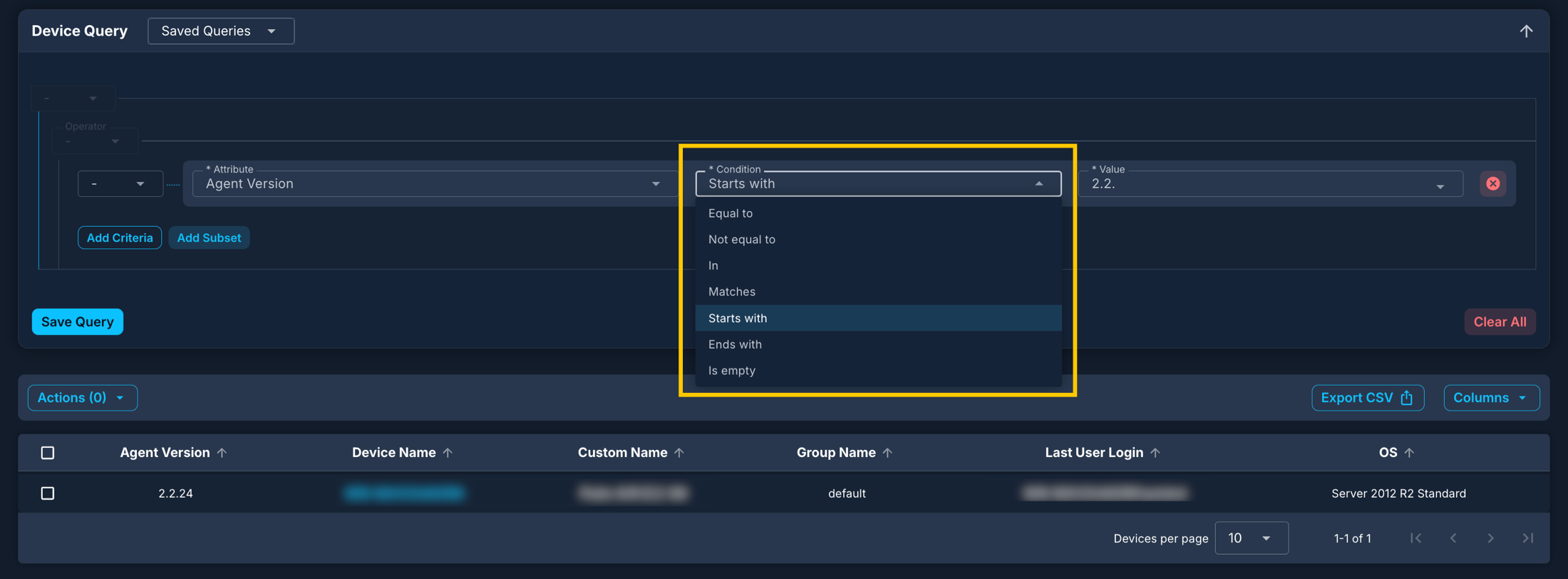
- Select a Condition. The available conditions depend on the attribute selected.
- In the Value field, enter a value or select from the available options, depending on the attribute.
- Select Add Criteria to include additional attributes, as needed.
- Use the operators AND, OR, and NOT, and apply Subsets, as needed.
- AND lists devices
 A subset of Assets, a general term denoting anything that runs the Automox Agent and is registered with the system. where ALL the criteria specified are true.
 - OR lists devices where ANY of the criteria specified are true.
- NOT lists devices where the criteria specified are NOT TRUE.
- AND lists devices
- Select Save Query. Enter a unique name up to 64 characters in length. The new query appears in the Saved Queries selector.
You can create a new query from an existing query. Open the query to use, modify the query as needed, and save using a unique name.
Example queries
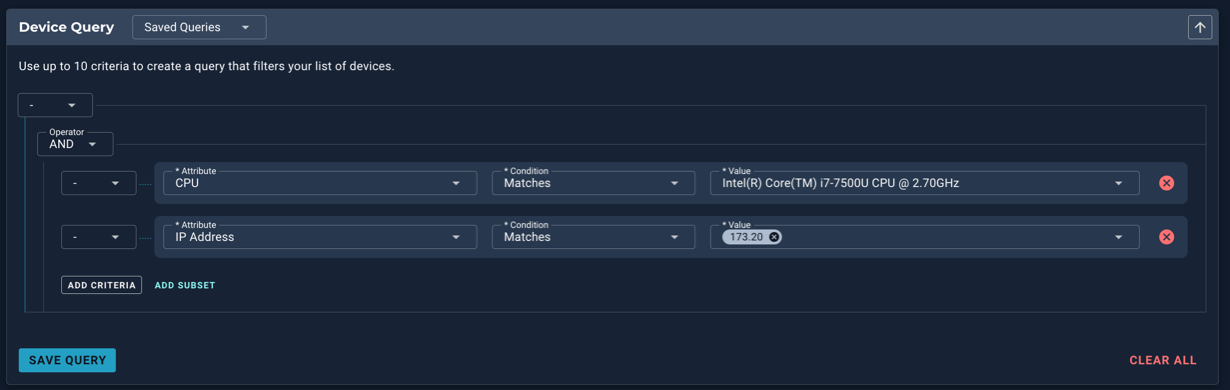
Example of a CPU and IP address filter query:
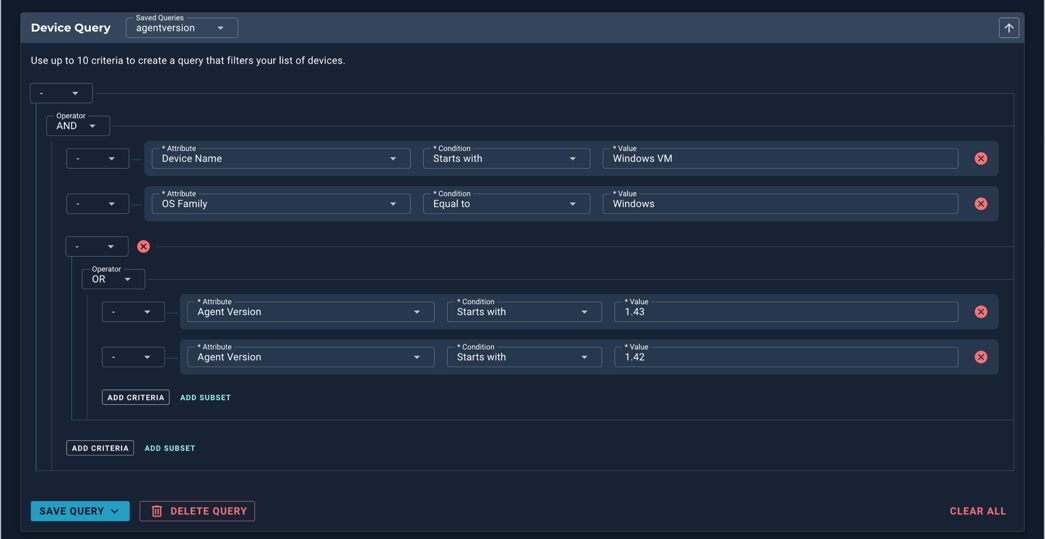
Example of an agent version query:
Deleting a query
If you are creating a new query and want to start over, select Clear All. This resets all entries.
To delete a saved query, open the query from the Saved Queries selector and select Delete Query. Confirm your selection. The query is removed from the Saved Queries selector.
Viewing saved queries
You can view a list of queries from the Saved Queries selector. Select the down arrow to open a list of all queries. If this list is empty, you have no saved queries.
Show or hide Query details
You can hide the details of a query. To do this, select the arrow above the query details.
When the query details are hidden, a number indicates how many criteria were used to create the query. Select the arrow to show the full details again.

Attributes reference
The following tables list available scopes, attributes, and descriptions that you can use to create queries.
About scopes
Attributes are grouped into scopes. Each scope contains related attributes, and the scopes appear together in the Attributes drop-down list to help you locate an attribute more easily. Use the search capability of the Attribute field to search for the scope and attribute you are looking for.
The available scopes are: Devices, Disks, IP Address, NICS, Software, and Tags.
Devices scope
Attribute | Description |
|---|---|
Active Directory OU | Active directory organizational unit filter path, if configured |
Agent Version | Version of the Automox agent running on the device. |
Compatible | Device compatibility status with Automox. |
CPU | Model of the CPU. |
Custom Name | Name assigned to the device by the user. |
Date Added | When the device was first added to Automox. |
Device ID | ID of the device in the database |
Device Name | Permanent device name (hostname) |
Device UUID | Universally unique identifier for the device |
Disk | Disk partitions, file systems, and usage (JSON) |
Distinguished Name | Unique name for the device in your active directory - organizational unit |
Do Uninstall | Agent marked for uninstallation on next check-in |
FQDN | Fully qualified domain name |
Group ID | Group ID that the device is assigned to |
Group Name | Name of the group that the device is assigned to |
Instance ID | Cloud instance ID |
Last Disconnect Time | Last time device disconnected |
Last Refresh Time | Last time device refreshed. Update of the display information. |
Last Scan Failed | Last time device scan failed |
Last Update Time | Last update timestamp |
Last User Login | The name of the user who last logged in to the device |
Model | Type of computer |
Needs Restart | The device has installed patches or software that require a restart before installation can be fully completed. |
Next Check In Time | Next expected check-in |
Notes | Notes field |
OS | This is the OS type of the device, either macOS, Windows, or Linux |
OS Family | Operating system: Windows, Mac, or Linux |
OS Version | Operating system build number |
OS Version ID | OS version ID |
OS Version Language | OS language |
Outstanding Patch Age | Number of days a patch has been left unpatched |
Outstanding Patch Severity | Patch severity level |
Outstanding Patch Status | Whether a patch is available or not |
PowerShell Version | Version number of the installed build (Windows only) |
RAM | RAM in bytes |
Serial Number | Serial number for a device |
Service Tag | Tag number that comes from the manufacturer |
UTC Offset | Time offset of the device |
Vendor | Hardware vendor |
Disks scope
Attribute | Description |
|---|---|
Disk Available Space | Usable disk capacity after system-reserved space is deducted |
File System Type | File system type of installed storage drives |
Disk Free Space | Free disk space is the total amount of disk capacity that is not currently occupied by any file or directory |
Disk Name | Disk label that is a human-readable name for a partition |
Mount Point | Volume information with mount points (JSON - exact match only) |
IP Address scope
Attribute | Description |
|---|---|
IP Address | IP address assigned to the device |
IP Type | Type of IP address (private or public) |
NICS scope
Attribute | Description |
|---|---|
Device | Name of network interface controller |
MAC Address | Media access control address of the machine |
Interface Type | Type of network interface controller |
Vendor | Manufacturer |
Connected | NIC status |
Software scope
Attribute | Description |
|---|---|
Automox Supported | Packages that Automox can patch (also known as managed) |
Needs Restart | Software that requires a restart before installation can be fully completed. |
Severity | Severity level (critical, high, medium, low, no known CVE, none, unknown) |
Software Installation Status | Package display name - Auto-Complete |
Software Package Display Name | Package display name - Auto-Complete |
Software Package Name | Package name - Auto-Complete |
Software Package Repository | Package repository - Source of the software patch |
Software Package Version | Package version - Auto-Complete |
Software Uninstallable | Shows if the software can be uninstalled |
Tags scope
Attribute | Description |
|---|---|
Tags | User defined label assigned to a device |
Conditions and Values
Depending on the attribute you select, the Condition field shows only the operators that apply to that attribute. Conditions fall into the following groups.
String comparison conditions
These conditions evaluate text values.
- Equal to
- Not equal to
- In
- Matches
- Starts with
- Ends with
- Is empty
True or False conditions
These conditions apply to attributes that accept a Boolean value.
- Equal to
- Not equal to
Numeric, date, and version conditions
These conditions apply to attributes that represent ordered values, such as numbers, timestamps, dates, or versions.
- Equal to
- Not equal to
- In
- Greater than
- Greater than or equal to
- Less than
- Less than or equal to
Values
The Value field adjusts automatically depending on the attribute and condition. The following examples show how values can be selected or entered.
In (select multiple values)
Use In to include devices that match any of the selected values.

Matches (select a single value)
Use Matches to include devices that match only the selected value.

True or False
Attributes that accept a Boolean value display True and False as selectable options.

Other value types
- Pre-populated lists: Typing in the Value field displays selectable matching values.
- Date picker: Attributes that require a date allow you to type the date or select it from a calendar.
- Autocomplete fields: For some attributes, suggestions appear as you type.
- Free-text or version values: Some attributes accept manually entered text or version strings.
Devices Table Results
The devices table displays the results of the query defined in the Device Query section. If no query is set, the table lists all devices in the organization.
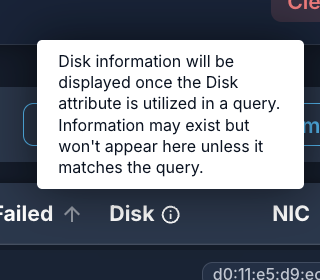
- The Disks and Software columns will only show data in the Results table when an associated attribute is used in the query.
- The Software, Disks, IP Address, and NICS columns show additional information on hover.

The devices table does not include a search field. Use the Device Query to refine results.
Default columns
By default, the devices table displays these columns:
- Last User Login
- OS
- Agent Version
- Device Name
- Custom Name
- Group Name
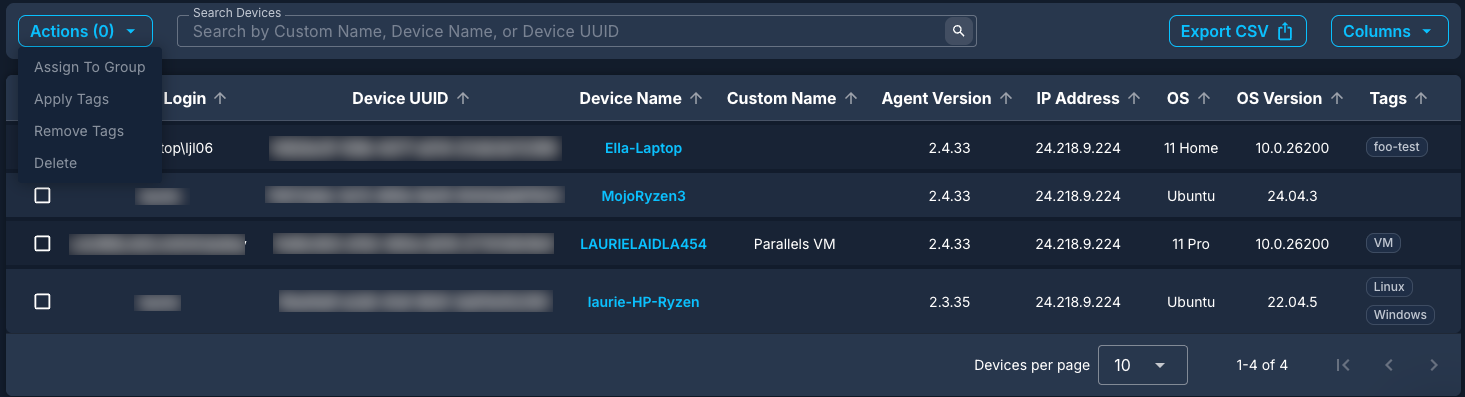
This table also includes the following Actions:
- Apply Tags
- Remove Tags
- Assign to Group
- Delete Device
Show or hide columns
The devices table has a default setting of data that can be changed. You can hide, show, and rearrange the columns of data in the list of devices.
- Select Columns to see all available columns.
- Drag and drop column names to reorder them. The table adjusts automatically.
- Select or clear checkboxes to show or hide data.
Device Summary Sidebar
From the Devices table, you can select a device to view the device summary sidebar. You can view only one summary at a time. The sidebar provides a quick view of pertinent information about the device, offering a summary of what is available on the more detailed Device Details page.
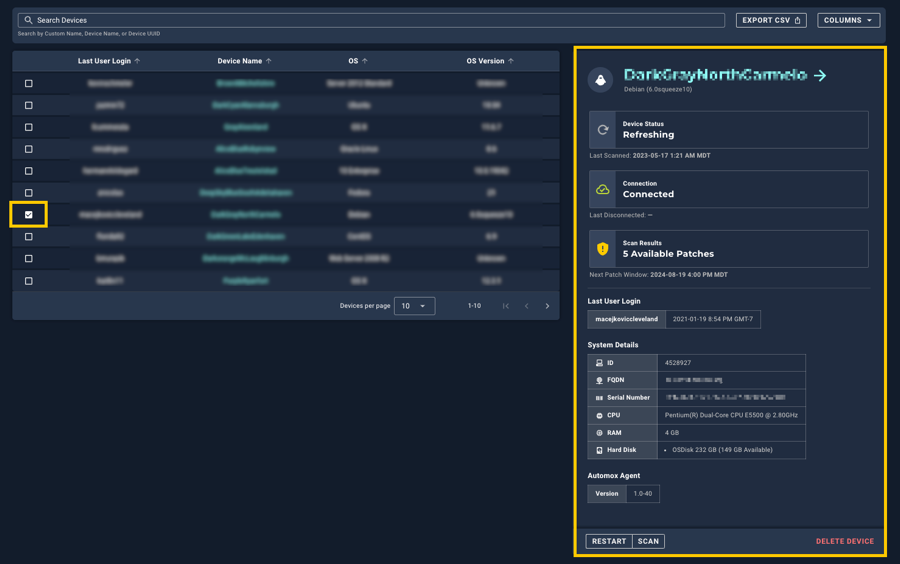
Interacting with the sidebar:
- Select the device's checkbox to open the summary.
- View status and connection details about the device.
- Select the device name or the arrow to open the Device Details page.
- Review Available Patches:
- This status indicates if applicable patches have been detected. Note that these might not be associated with a scheduled policy.
- To view a list of available patches for a device, click the device name to open the Device Details page. Go to the Software section. The Status column lists any available patches. Search for Update Available.
- It is recommended that you scan the device to ensure that this status is accurate.
The information provided in this sidebar is an excerpt of the details provided on the current Device Details page. For more information about this data, see Device Details . See also What the Statuses Found in the Automox Console Mean .
Export the Device List to a CSV File
You can export the results of any query by selecting the Export CSV button. This exported file only includes the devices from the results of the query . The data exported includes the following information (refer to the Attributes reference for descriptions).
CSV Export | Attribute equivalent |
|---|---|
agentVersion | Agent Version |
CPU | CPU |
createdAt | Date Added |
customName | Custom Name |
deviceUuid | Device UUID |
DISKS | Disk |
DISTINGUISHED_NAME | Distinguished Name |
FQDNS | FQDN |
ipAddrs | IP Address |
ipPrivateAddrs | Private IP Address |
lastLoggedInUser | Last User Login |
MODEL | Model |
name | Device Name |
NICS | NIC |
organizationalUnit | Active Directory OU |
osFamily | OS Family |
os | OS |
osVersion | OS Version |
PS_VERSION | PowerShell Version |
RAM | RAM |
serial | Serial Number |
serverGroup | Group ID |
serverGroupName | Group Name |
SERVICETAG | Service Tag |
VENDOR | Vendor |
VERSION | Version |
