Scheduled Windows
Use Scheduled Windows Defined time periods controlling when Automox runs policies. to control when Automox performs or pauses tasks on devices A subset of Assets, a general term denoting anything that runs the Automox Agent and is registered with the system.. This page lists all scheduled windows in your organization A subset of an account. An Automox customer account can be tied to multiple organizations, and users can be invited to, and access multiple organizations. An organization contains users, devices, and policies.. You can currently schedule exclusion windows, which allow you to pause tasks such as patching, policy execution When a policy runs on targeted devices per schedule., or worklets Represents an automation script that can execute on a set of devices, consisting of evaluation and remediation code blocks. Worklets can be OS-specific or targeting a platform-agnostic language..
Navigate to Manage → Scheduled Windows to open the page.
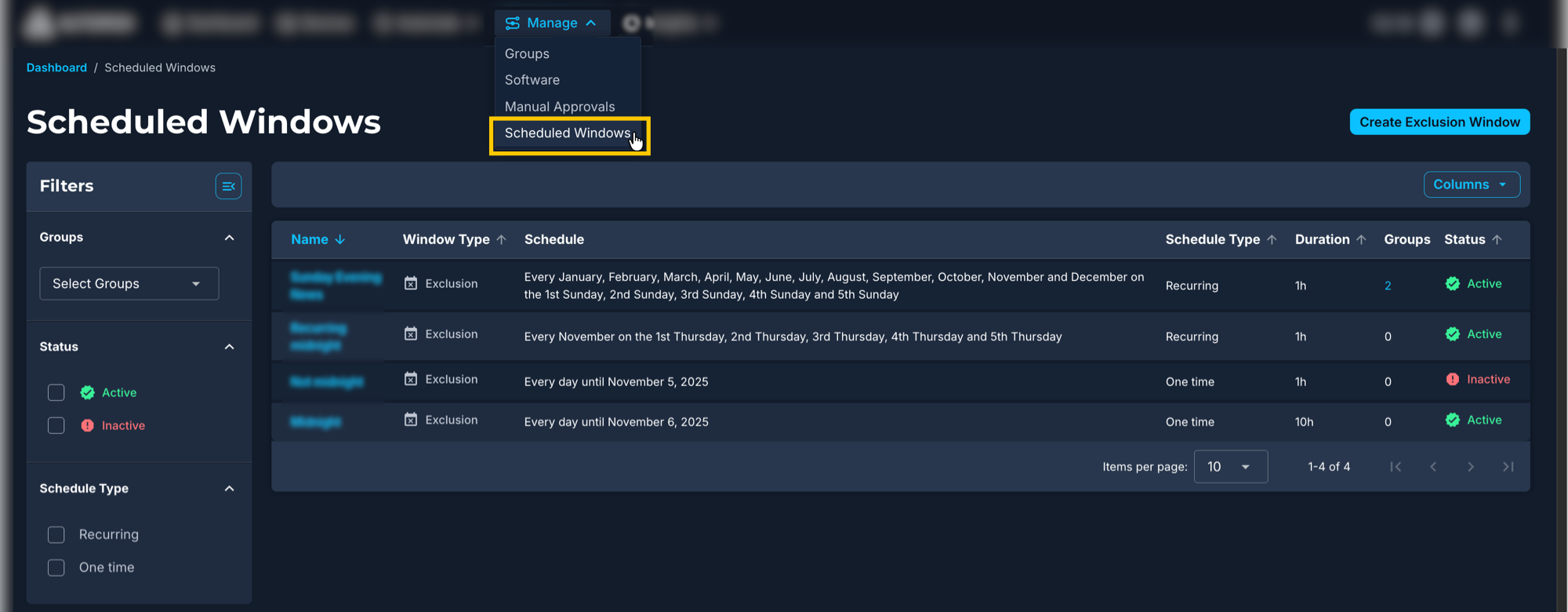
Viewing Scheduled Windows
The Scheduled Windows page displays all current scheduled windows. You can view details, edit an existing scheduled window, or perform actions.
Each scheduled window includes the following columns:
- Name: The name of the scheduled window.
- Window Type: The type of scheduled window, such as Exclusion.
- Schedule: The defined schedule.
- Schedule Type: Whether the scheduled window is Recurring or One time.
- Groups: The number of device groups included in the scheduled window.
- Duration: The length of time the scheduled window remains in effect.
- Status: Indicates whether the scheduled window is Active or Inactive.
Filtering and Searching on the Scheduled Windows Page
The filter panel includes options to fine-tune your view and focus on specific scheduled windows. Filters let you view the windows that match selected criteria, such as group association, schedule type, or status. The panel shows selected counts, includes a Clear All option, and preserves your selections when you navigate away from the page and return later.
You can use the following filters to narrow the list of scheduled windows:
| Filter | What it filters by |
|---|---|
| Group | Scheduled windows that include the group or groups you select. |
| Status | Scheduled windows that are configured as Active or Inactive. |
| Schedule Type | Scheduled windows that are configured as Recurring or One time. |
After applying filters, the table updates to display all scheduled windows that match your selected criteria.
Table and Columns
The table lists all scheduled windows. You can sort columns and customize which columns are displayed.
- Columns: Select Columns to show or hide data, and drag column headers to reorder them.
- Sorting: Select a column header to sort the list in ascending or descending order.
