Filtering and Searching on the Polices Page
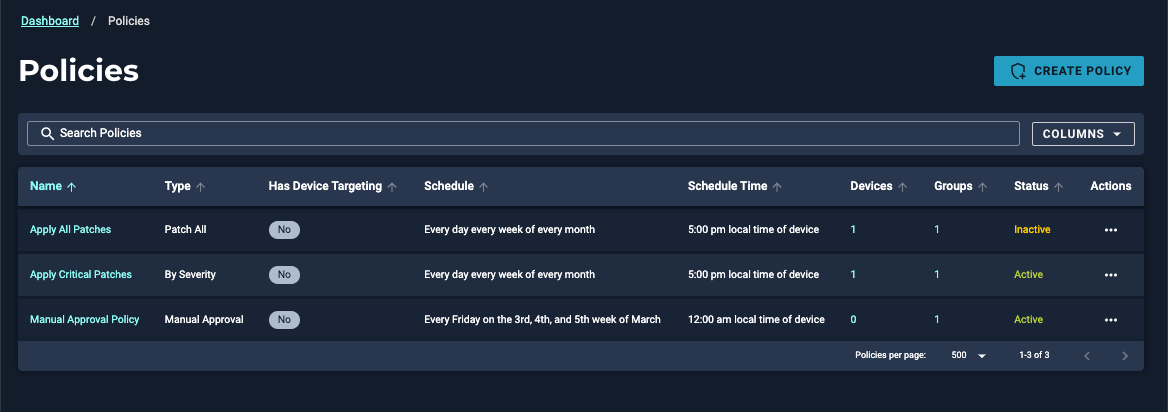
From the Automate → Policies page, you can view a complete list of all the policies Represents a set of logic statements that define the desired target state of a device, the allowed remediation schedule, and configuration parameters around how that remediation should take place. in your organization A subset of an account. An Automox customer account can be tied to multiple organizations, and users can be invited to, and access multiple organizations. An organization contains users, devices, and policies.. Use the search bar and filter panel on the left to filter for those policies that you are interested in viewing.
Policies Search Bar
Use the Search Policies field to search for a specific policy. This search bar does not have the same functionality as the enhanced device search. Use the side filter panel for a more detailed search result.
Policies Filter Panel
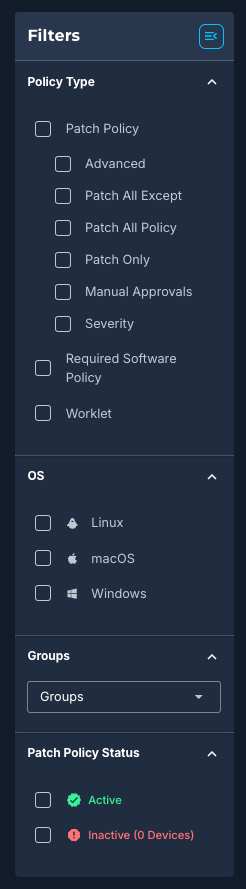
The filter panel is made up of various options to fine-tune your search. When you select any of the individual filters, a number in parentheses shows how many are selected. You can clear selections individually, or select Clear All. The panel can also be collapsed.
Policy Type
To filter the list of policies by Policy Type, select from the options available in the filter panel. The resulting list of policies updates immediately when an option is selected.
OS
To filter the list of policies by OS, select the OS drop-down menu to choose from Linux, macOS, and Windows. You can select one or more.
Groups
To filter the list of policies by Group, select the menu and choose the groups that you want to view a list of policies for. Select and clear the checkboxes as needed.
(Optional) Enter the group name in the search field to narrow down the list of groups.
Patch Policy Status
You can filter the list of policies by status. Select from Active or Inactive.
An Active policy means patching is enabled. Select Inactive to filter the list of policies that have patching disabled.
