macOS MDM Configurations for Splashtop
Use this documentation to create configuration profiles for your Jamf Pro or Intune MDMs to work with Splashtop
Remote Control Feature for conducting remote sessions on devices..
Prerequisites:
The following files are required to configure Intune or Jamf for Splashtop: Intune: XML configuration Jamf: .mobileconfig files
- Jamf Pro
- Intune
macOS: Creating the Splashtop Configuration Profile for Jamf Pro
This document provides guidance for how-to create the macOS .mobileconfig Configuration Profile for use in Jamf Pro. The profile configuration
maintains required settings by 'locking' configurations from user manipulation. Once deployed, you may scope the
profile globally to your Jamf-managed fleet without concerns of configuration drift.
- Jamf Pro Full Admin access
- Or an account with Mobile Devices and Mobile Device Configuration Profiles privileges.
Splashtop Remote Configuration Profile Setup
- Login in your Jamf Pro instance and navigate to Computers → Content Management → Configuration Profiles and select Upload.
- In the window that appears, select Choose File and then select the downloaded .mobileconfig file.
- Next, select Upload. Navigate to the General Tab
and update the Name, Description, or Category as needed. Do not change Level or Distribution
Method.
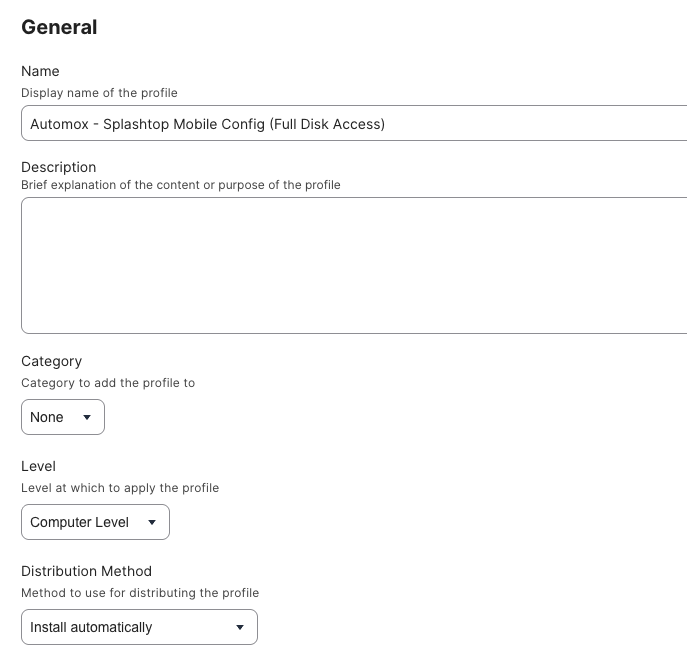
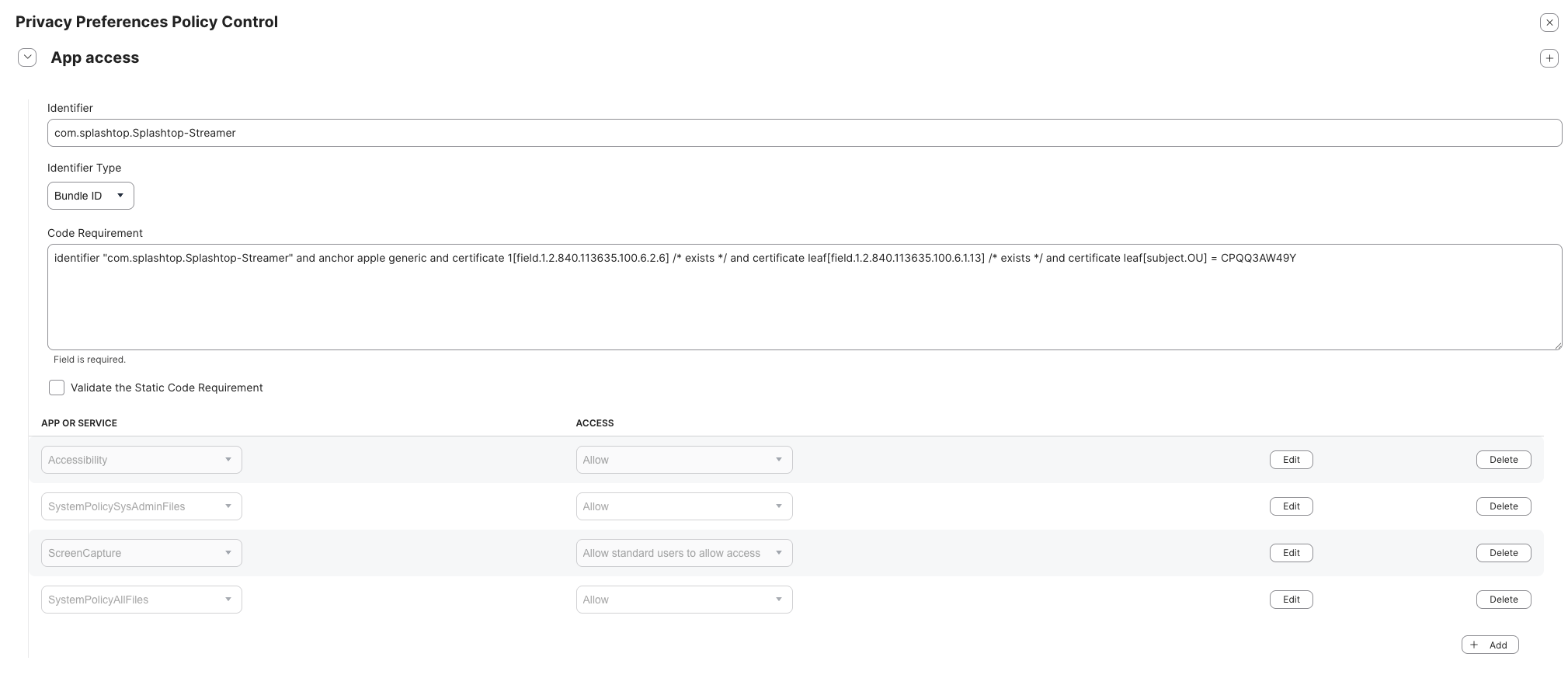
- Navigate to the Privacy Preferences Policy Control tab and verify the fields are correct:
- Identifier: com.splashtop.Splashtop-Streamer
- Code Requirement: identifier "com.splashtop.Splashtop-Streamer" and anchor apple generic and certificate 1[field.1.2.840.113635.100.6.2.6] /* exists */ and certificate leaf[field.1.2.840.113635.100.6.1.13] /* exists */ and certificate leaf[subject.OU] = CPQQ3AW49Y
- Accessibility: Allow
- SystemPolicySysAdminFiles: Allow
- ScreenCapture: Allow standard users to allow access
- SystemPolicyAllFiles: Allow
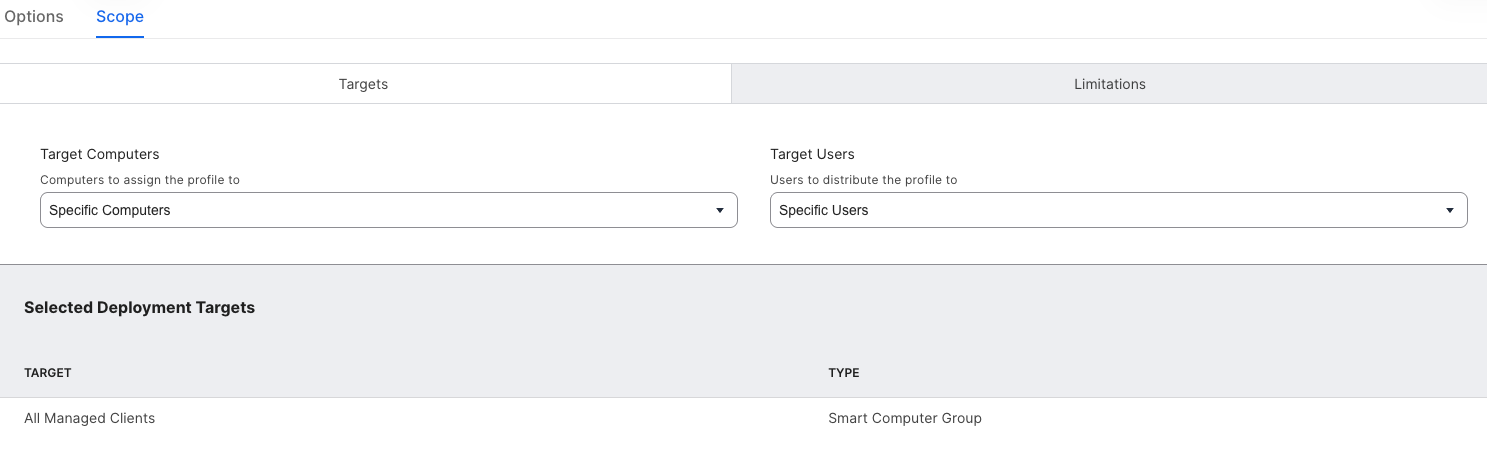
- Under Scope assign relevant Groups.
- Click Save.
macOS: Creating the Splashtop Configuration Profile for Intune MDM
This document provides guidance for how to create the macOS .mobileconfig Configuration Profile for use in the Microsoft Intune MDM. The profile
configuration maintains client required settings by 'locking' configurations from user manipulation.
Once deployed, you may scope the profile globally to your Intune-managed fleet without concerns of configuration drift.
- Intune Pro Full Admin access
- Or an account with macOS and Configuration Profiles write-ability privileges.
Importing the Splashtop Remote Configuration Profile into Microsoft Intune
Import the necessary profile via .XML configuration, .mobileconfig, for Automox's remote control capabilities with
Splashtop.
To create new / import the configuration:
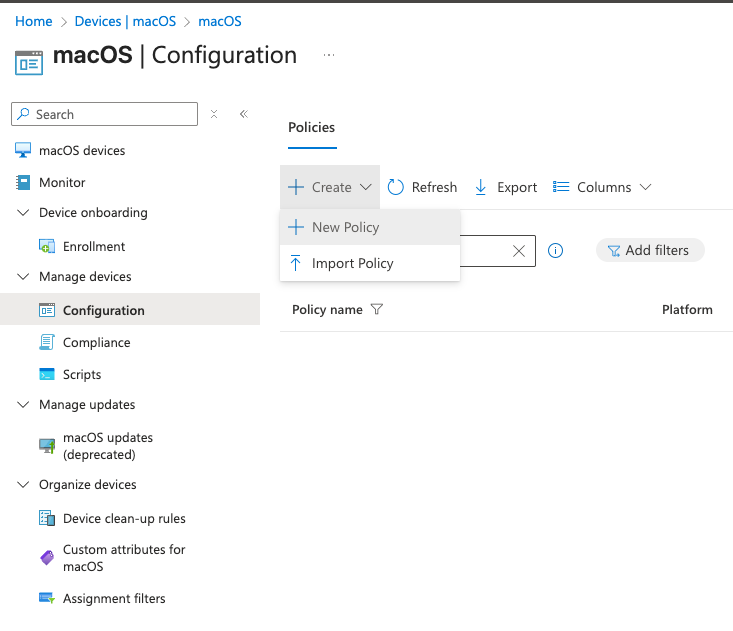
- Go to Microsoft Endpoint Manager admin center and navigate to Devices → MacOS → Configuration under Manage Devices.
- Click on Create →
click New policy:
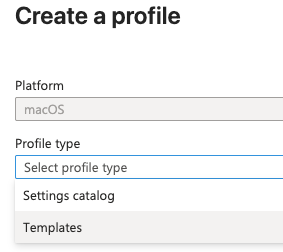
- As a profile type, select
Templates.
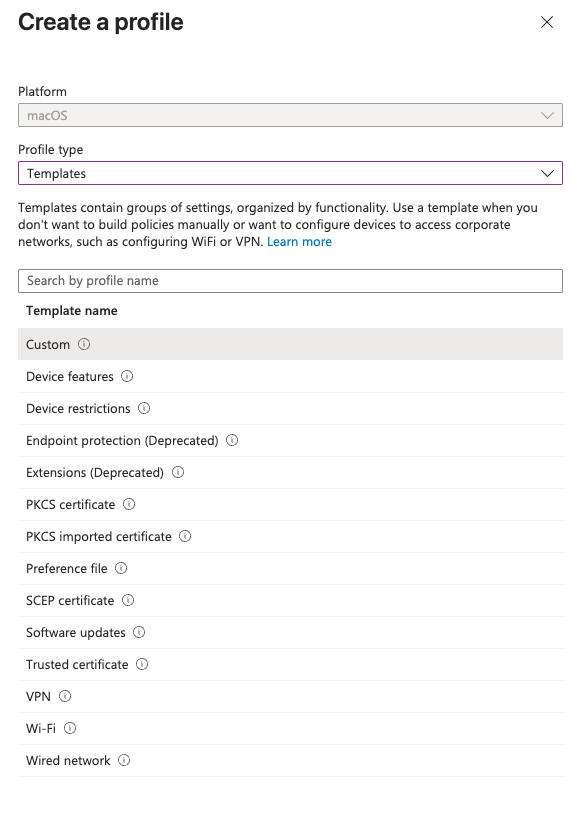
- For the template name, select Custom.
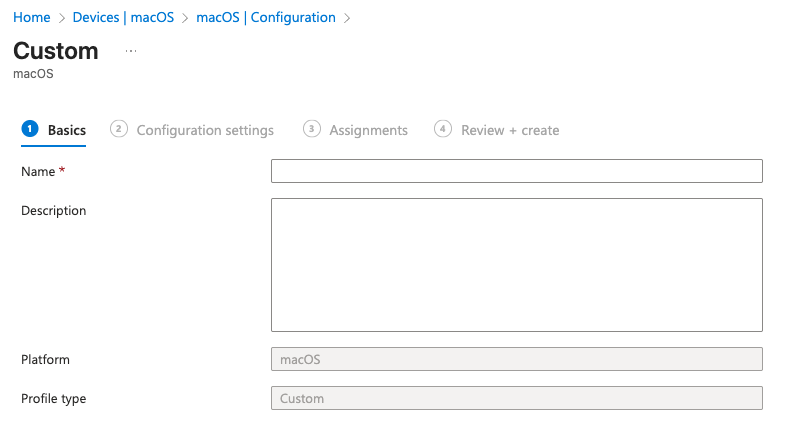
- After clicking Create, you see the following Custom profile creation window.
- Enter the name Automox - Splashtop Mobile Config (Full Disk Access) with a description of The Automox Remote Control
feature requires Full Disk Access to function properly. If not deployed, the user must manually
allow permissions.
Note: Deploy these settings as tamper-protection controls.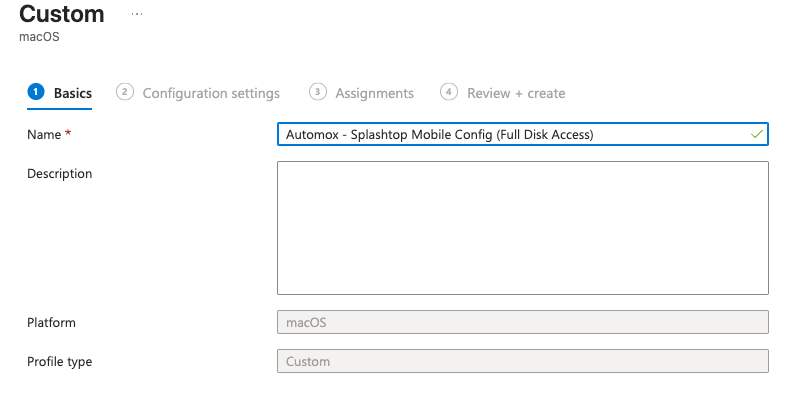
Click Next to proceed to the configuration profile file upload. - Under custom configuration profile name type in the Name of the profile as before, Automox - Splashtop Mobile Config (Full Disk Access)

Using the xml profile Automox - Splashtop Mobile Config - (Full Disk Access) click Next to finalize ingestion of the configuration.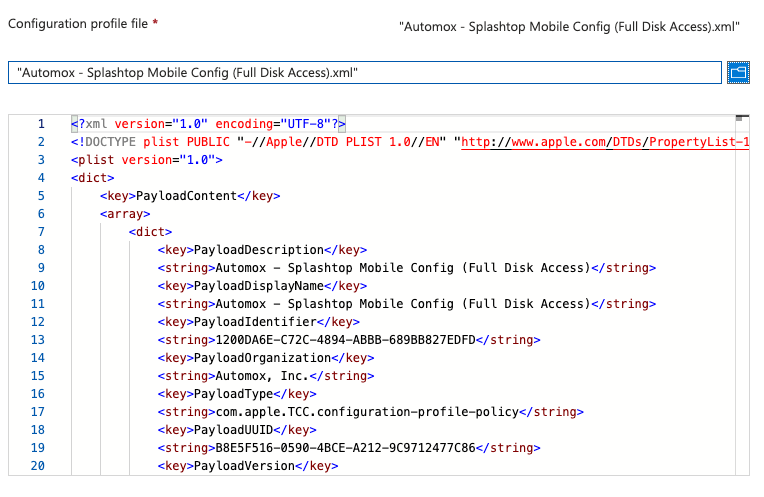
- Navigate to the imported profile body and verify the fields are correct:
- Identifier: com.splashtop.Splashtop-Streamer
- Code Requirement: identifier "com.splashtop.Splashtop-Streamer" and anchor apple generic and certificate 1[field.1.2.840.113635.100.6.2.6] /* exists */ and certificate leaf[field.1.2.840.113635.100.6.1.13] /* exists */ and certificate leaf[subject.OU] = CPQQ3AW49Y
- Accessibility: Allow
- SystemPolicySysAdminFiles: Allow
- ScreenCapture: Allow standard users to allow access
- SystemPolicyAllFiles: Allow
- To deploy, set Group assignment to include macOS users and macOS device
groups, → click Next to finalize and to go-live with the released configuration.
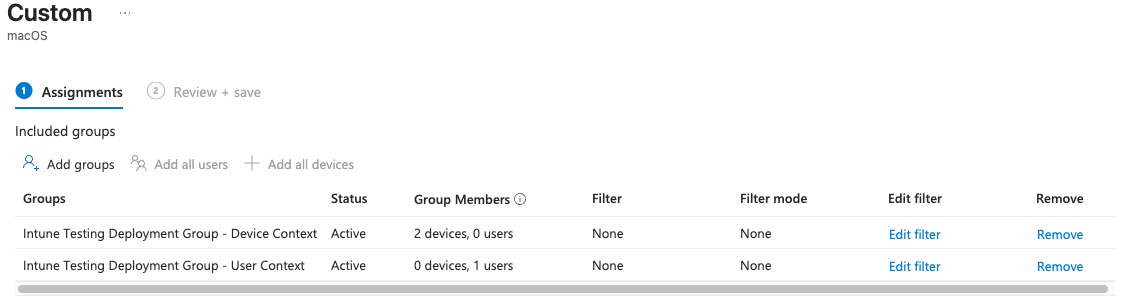
- Once you click Create, the profile will be saved to Intune.
- Additionally, if you have previously saved the profile and are reaching deployment, you click Review + Save.
