Quick Start Guide - Using Remote Control with Splashtop
This Quick Start Guide explains how Remote Control with Splashtop works end‑to‑end, including how the Splashtop Streamer is installed, what macOS permissions are required, and exactly what end users will see during and after installation.
For advanced configuration, troubleshooting, and UI reference, see Automox Remote Control with Splashtop – Full User Guide .
Overview
Remote Control allows IT administrators to securely connect to devices directly from the Automox console. Sessions are encrypted and can be used for troubleshooting, patching, maintenance, or end‑user support.
On the Device Details page, the Remote Control section is organized to clearly separate entitlement, deployment status, actions, and settings related to Remote Control.
Automox integrates with Splashtop using two components:
- Splashtop RMM App – Installed on the administrator’s computer
- Splashtop Streamer – Installed on the remote device being controlled
Both components must be installed, with permissions properly configured, before a session can begin.
Prerequisites
Subscription & Permissions
To access Splashtop’s capabilities, your organization must be on one of the following plans.
- Remote Control Core – Included with Automate Enterprise
- Automox Resolve, powered by Splashtop – Optional add‑on that enables premium features (file transfer, chat, remote print, multiple concurrent sessions)
If you are interested in a plan upgrade to access Splashtop, please contact your Automox Account Manager, or reach out to expansion-sales@automox.com.
Role-Based Permissions
Your Automox role determines what Remote Control actions you can perform:
Remote Control – Session Access
- To start a Remote Control session, you must have one of the following permissions:
- Full Administrator
- Organization Operator
- Helpdesk Operator
- Custom roles with Devices: Control
Remote Control – Consent Management
- Change attended vs. unattended access:
- Full Administrator
- Custom roles with Remote Control Consent: Manage
Remote Control – Deployment (Install / Uninstall)
- View Remote Control deployment settings (read-only):
- Full Administrator
- Organization Operator
- Helpdesk Operator
- Custom roles with Remote Control Deployment: Read
- Install or uninstall the Splashtop Streamer (organization-wide):
- Full Administrator
- Custom roles with Remote Control Deployment: Manage
- Install or uninstall the Splashtop Streamer (per device):
- Full Administrator
- Organization Operator
- Helpdesk Operator
- Custom roles with Remote Control Actions: manage (device)
Agent & OS Requirements
All devices with the Splashtop streamer need to be on Agent 2.4.33 or newer in order for Splashtop to work.
Administrator device (Splashtop RMM App):
- Windows
- macOS
Remote device (Streamer):
- Windows 10–11
- Windows Server 2012–2022
- macOS 13 (Ventura) or later
Network Requirements
Outbound traffic to required Splashtop services must be allowed. See Additional Recommendations for Automox Remote Control with Splashtop.
Install the Splashtop RMM App
The Splashtop RMM App must be installed before you can start a remote session.
- Navigate to the Device Details page of the remote device and select Remote Control.
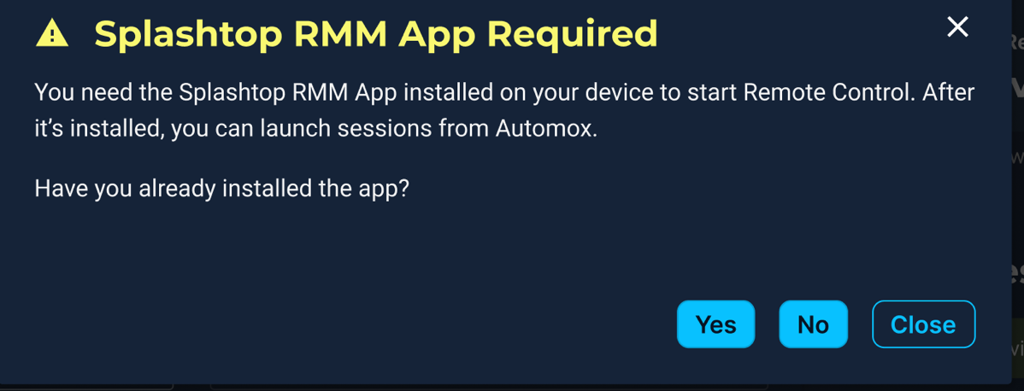
- The first time you attempt to use Remote Control—and on every attempt until you confirm—the console will display a prompt asking whether you have already installed the Splashtop RMM App.
- Select No to open a window with download links for Windows and macOS.
- Install the app, then return to the console.
- Once the Splashtop RMM App is installed, click Remote Control again and select Yes when prompted.
- After you click Yes, Automox records that confirmation and you will not see the prompt again on future Remote Control attempts from that same administrator device.
The Splashtop RMM App only needs to be installed once per administrator device.
How the Splashtop Streamer Is Installed (Remote Devices)
Installation Options
Administrators can install the Streamer in two ways:
Option 1: Organization‑Wide Install
- Navigate to Settings → Remote Control
- Select Install Splashtop Streamer
- Automox sends a silent install command to all supported devices in the organization. On Windows, nothing is required for the end-user.
Option 2: Per‑Device Install
- Open the Device Details page
- Expand the Remote Control accordion
- Select Install Splashtop Streamer
Installation Behavior
- Installation is silent on Windows
- On macOS, the app installs silently but user interaction is required for permissions
- After install:
- The Streamer registers with the Automox–Splashtop backend
- Device status updates appear in the Remote Control accordion
If installation or registration fails, Automox displays a Streamer Status modal with error details and a retry option.
How Is the Splashtop Streamer Installed on Windows?
On Windows, the Splashtop Streamer is installed system-wide — not under the currently logged-in user's profile. It runs as a Windows service executed by the SYSTEM account, which means:
- It is available before any user logs in, including at the Windows login screen
- No per-user installation or configuration is required
- The service starts automatically and persists across reboots and user account changes
macOS Permissions – What’s Required and Why
For Splashtop-maintained, step-by-step macOS permission instructions (including screenshots and OS-specific variations), see How to allow remote access on macOS.
macOS enforces strict privacy controls. Even when the Streamer is installed by IT, Apple requires the end user to approve certain permissions manually.
Required Permissions
The Splashtop Streamer requires:
- Accessibility – Allows keyboard and mouse control
- Screen Recording / Remote Desktop *
 – Allows screen viewing
Optional (Feature‑Dependent) Permissions
- Microphone – Required for audio during remote sessions
- Full Disk Access – Required for advanced file operations
What IT Can Pre‑Configure
Using MDM tools (Jamf, Intune, etc.), IT can:
- Pre‑approve Accessibility
- Pre‑approve Full Disk Access
- Configure Screen Recording to allow standard users to approve without admin rights
What End Users Will See
After installation, macOS will prompt the user to approve permissions:
- Screen Recording prompt appears
- User selects Allow
- User may be directed to System Settings → Privacy & Security
- User enables Splashtop for Screen Recording
- A restart of the Splashtop Streamer may be required
If the Microphone is used, a separate prompt will appear when audio is first requested.
If a prompt is dismissed, permissions can be enabled manually:
System Settings → Privacy & Security → Screen Recording / Microphone / Accessibility
Until Screen Recording and Accessibility are approved:
- Sessions may launch
- The Splashtop RMM App may appear blank or non-interactive
Starting a Remote Control Session
- Open the Device Details page
- Select Remote Control
Session behavior (prompted or unprompted) depends on the configured End-user consent setting.
If all requirements are met:
- Splashtop RMM App launches immediately
- Session begins
If something is missing:
- The Streamer Status modal explains what failed
- Install or retry options are provided
If your session doesn't connect
If the Splashtop Streamer is installed and registered but the session fails to start, use Check Firewall from the Remote Control section on the Device Details page.
Check firewall verifies that the device can reach required Splashtop and Automox services and is the fastest way to identify firewall or network-related issues.
Understanding the Remote Control Section
The Remote Control section on the Device Details page is organized into four areas to make it easier to understand readiness, available actions, and configuration.
- Tier – Indicates which Remote Control tier is enabled for the device (Core or Automox Resolve powered by Splashtop).
- Status – Shows whether the Splashtop Streamer is installed and registered.
- Actions – One-time operations such as installing or uninstalling the Streamer, ending active sessions, running a firewall check, or viewing the Splashtop RMM App links.
- Settings – Persistent configuration options that control Remote Control behavior, including end-user consent.
End-User Consent Behavior
Remote Control consent is controlled by the End-user Consent setting, in the Settings area of the Remote Control section, on the Device Details page.
Only full administrators or custom roles with the Remote Control Consent: Manage permission can modify consent behavior.
The End-user consent setting allows administrators to control whether a user must approve a remote session — and what happens if the user does not respond.
Available End-User Consent Options
- Required (attended)
The user must approve the session before it begins. - Not required (unattended)
The session starts immediately with no end-user prompt. - Required — if user doesn't respond, deny
If the user does not click Allow within 30 seconds, the session fails. - Required — if user doesn't respond, allow
If the user does not respond within 30 seconds, the session starts automatically.
The default setting is Required (attended).
Change Consent Behavior
- Open Device Details
- Open the Remote Control section
- In Settings, select the desired End-user consent option
- Click Save settings to apply the change
Changes are not applied until Save is clicked.
Bulk updates are available via Devices → Actions → Configure Remote Control.
Using the Remote Session in the Splashtop RMM App
When the session begins, the Splashtop RMM App displays the remote desktop and a navigation bar with session controls.
Splashtop Session Controls (Quick Reference)
Note: You can hover over the icons to identify the control.
| Control | Description |
|---|---|
 Disconnect Disconnect
|
Ends the remote session. |
 RDP Switch Session (Premium) RDP Switch Session (Premium) |
Allows switching between active Windows user sessions. |
 Switch Monitor Switch Monitor
|
Switch between individual monitors on the remote device. Available on both Core and Resolve. Resolve users can also use "All Monitors (One Window)" to view all monitors simultaneously in a single combined view. |
 View Settings View Settings
|
Adjusts display options including scaling, quality, and cursor visibility. |
 Full Screen Full Screen
|
Expands the view to fill the administrator's display. Press Escape to exit. |
 Ctrl+Alt+Del Ctrl+Alt+Del
|
Sends the Ctrl+Alt+Delete command to the remote Windows device. |
 Record Session (Premium) Record Session (Premium) |
Starts or stops recording of the remote session. |
 File Transfer (Premium) File Transfer (Premium) |
Transfers files between the administrator and remote device. |
 Chat (Premium) Chat (Premium) |
Opens a text chat window for communication with the remote user. |
 Actions Actions
|
Screen and input controls. |
A complete description of all session controls appears in the Automox Remote Control with Splashtop – Full User Guide .
End a Session
You can end a session in either of the following ways:
- Select Disconnect in the Splashtop RMM App (Splashtop RMM App).
- Close the session window.
Managing Updates and Uninstalls
Updates
- The Splashtop Streamer and Splashtop RMM App (Splashtop RMM App) are listed in the Automox Third-Party Software Catalog
- Both can be updated using standard Automox patch policies
Uninstall Options
Administrators can uninstall the Splashtop Streamer using any of the following supported methods:
Option 1: Organization-Wide Uninstall
- Navigate to Settings → Remote Control
- Select Uninstall Splashtop Streamer
- Automox sends a silent uninstall command to all supported devices in the organization
Option 2: Per-Device Uninstall
- Open the Device Details page for the device
- Expand the Remote Control section
- Select Uninstall Splashtop Streamer
Option 3: Worklet-Based Uninstall
- Use one of the Splashtop Uninstall Worklets found under Software Lifecycle in the Automox Worklet Catalog
- The worklet runs silently and requires no end-user interaction
All uninstall methods fully remove the Splashtop Streamer from the device.
Troubleshooting
| Issue | Probable Cause | Solution |
|---|---|---|
| Remote Control button is greyed out | Device is offline | Check device connectivity |
| macOS shows black screen | Permissions not granted | Ask the user to enable Screen Recording and Accessibility permissions |
| “Unsupported Agent Version” | Agent older than 2.4.33 | Upgrade to the latest Automox Agent |
| Session won’t close | Splashtop RMM App crashed | Click Clear Session in the Splashtop Status modal |
More troubleshooting steps are available in Remote Control with Splashtop – FAQ and Troubleshooting.
Quick Reference
| Category | Detail |
|---|---|
| File transfer limit | 64 GB (Premium only) |
| Concurrent session | 3 (Premium only) |
| Agent version required | 2.4.33 |
| Splashtop RMM App platforms | Windows, macOS |
| Streamer platforms | Windows, macOS (Linux in Phase 2) |
| Default access mode | Attended (user approval required) |
