Quick Start Guide - Using Remote Tools with Splashtop
This Quick Start Guide explains how Remote Tools The system you use to enroll and manage devices (for example, Jamf Pro or Microsoft Intune). with Splashtop works end‑to‑end, including how the Splashtop Streamer is installed, what macOS permissions are required, and exactly what end users will see during sessions.
Remote Tools includes four features: Remote Control, Remote Command, Standalone File Transfer, and System Tools. All four share the same Splashtop Streamer and Splashtop RMM App infrastructure
For advanced configuration, troubleshooting, and UI reference, see the Automox Remote Tools with Splashtop – Full User Guide .
Overview
Remote Control allows IT administrators to securely interact with managed devices directly from the Automox console Our web-based management dashboard, available at https://console.automox.com.. Sessions are encrypted and can be used for troubleshooting, patching, maintenance, scripting, file management, or end‑user support.
Remote Tools includes:
- Remote Control — Securely access and control a device's desktop in real time.
- Remote Command — Run interactive shell sessions (CMD, PowerShell, Bash, Zsh) on a remote device without taking over the user's screen.
- Standalone File Transfer — Move files to and from a remote device without starting a Remote Control session.
- System Tools — Reach core Windows administration utilities (Task Manager, Registry Editor, Device Manager, Service Manager) in the background, without a desktop takeover. On macOS, Activity Monitor only.
On the Device Details Per-device information page (hardware, OS, patches, software) page, all three features are launched from a unified Remote Tools button. The Remote Tools section on Device Details separates entitlement, deployment status, actions, and settings.
Automox integrates with Splashtop using two components:
- Splashtop RMM App – Installed on the administrator’s computer
- Splashtop Streamer – Installed on the remote device being controlled
Both components must be installed, with permissions properly configured, before a session can begin. A single Streamer install supports all Remote Tools features.
Prerequisites
Subscription & Permissions
To access Splashtop’s capabilities, your organization must be on one of the following plans.
- Core – Includes Remote Control only.
- Resolve – Includes Remote Control plus Remote Command, Standalone File Transfer, and premium Remote Control controls (in-session file transfer, chat, session recording, "All Monitors (One Window)" view, concurrent technician sessions, remote print).
If you are interested in a plan upgrade, please contact your Automox Account Manager, or reach out to expansion-sales@automox.com.
Role-Based Permissions
Your Automox role determines what Remote Tools actions you can perform. Each feature has its own access permission.
Session Access (initiate session)
| Permission | Default Roles |
|---|---|
| Remote Control: Access | Full Administrator Account-level role with operational management permissions., Helpdesk Operator Read-only role with remote control access., Organization Operator Org-level role with full admin rights for policies, groups, and devices. |
| Remote Command: Access | Full Administrator, Organization Operator |
| File Transfer: Access | Full Administrator, Organization Operator |
| System Tools: Access | Full Administrator |
Other Remote Tools Permissions
| Permission | Controls | Default Roles |
|---|---|---|
| Settings: Read | View Remote Tools Settings tab, device table, and the Remote Tools section on Device Details | Full Administrator, Helpdesk Operator, Organization Operator |
| Streamer: Manage | Install / uninstall Streamer on a single device from Device Details | Full Administrator, Helpdesk Operator, Organization Operator |
| Streamer Bulk: Manage | Bulk install / uninstall (org-wide, group-wide, ad hoc) | Full Administrator |
| Troubleshooting: Manage | Clear sessions; run Firewall Check | Full Administrator, Helpdesk Operator, Organization Operator |
| Remote Control Consent: Manage | Change end-user consent behavior | Full Administrator |
Agent & OS Requirements
All devices with the Splashtop streamer need to be on Agent Lightweight client application, which is installed on managed devices. 2.4.33 or newer.
Administrator device (Splashtop RMM App):
- Windows
- macOS
Remote device (Streamer):
- Windows 10–11
- Windows Server 2012–2022
- macOS 14 (Sonoma) or later
Network Requirements
Outbound traffic to required Splashtop services must be allowed. See Additional Recommendations for Automox Remote Tools with Splashtop.
Install the Splashtop RMM App
The Splashtop RMM App must be installed before you can start any Remote Tools session.
- Navigate to the Device Details page of the remote device and select Remote Tools.
- Select any feature (Remote Control, Remote Command, or File Transfer).
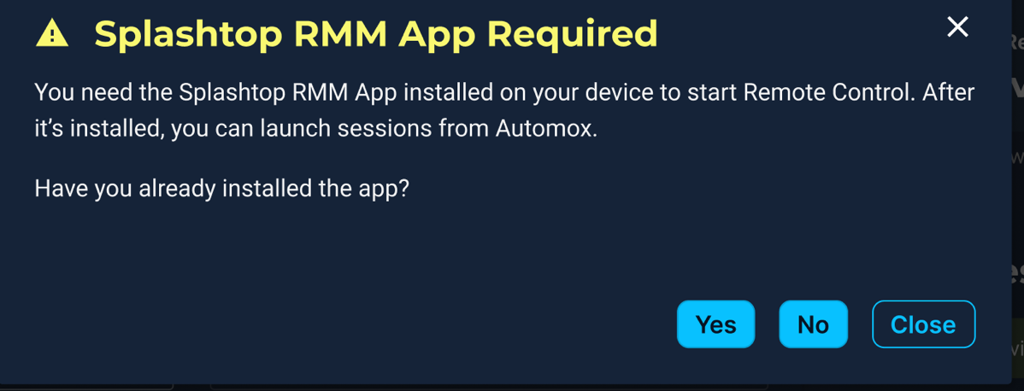
- The first time you attempt to use Remote Tools — and on every attempt until you confirm — the console will display a prompt asking whether you have already installed the Splashtop RMM App.
- Select No to open a window with download links for Windows and macOS.
- Install the app, then return to the console.
- Once the Splashtop RMM App is installed, click Remote Tools again and select Yes when prompted.
- After you click Yes, Automox records that confirmation, and you will not see the prompt again on future Remote Tools attempts from that same administrator device.
The Splashtop RMM App only needs to be installed once per administrator device and powers all Remote Tools features.
How the Splashtop Streamer Is Installed (Remote Devices)
Installation Options
Administrators can install the Streamer in two ways:
Option 1: Organization‑Wide Install
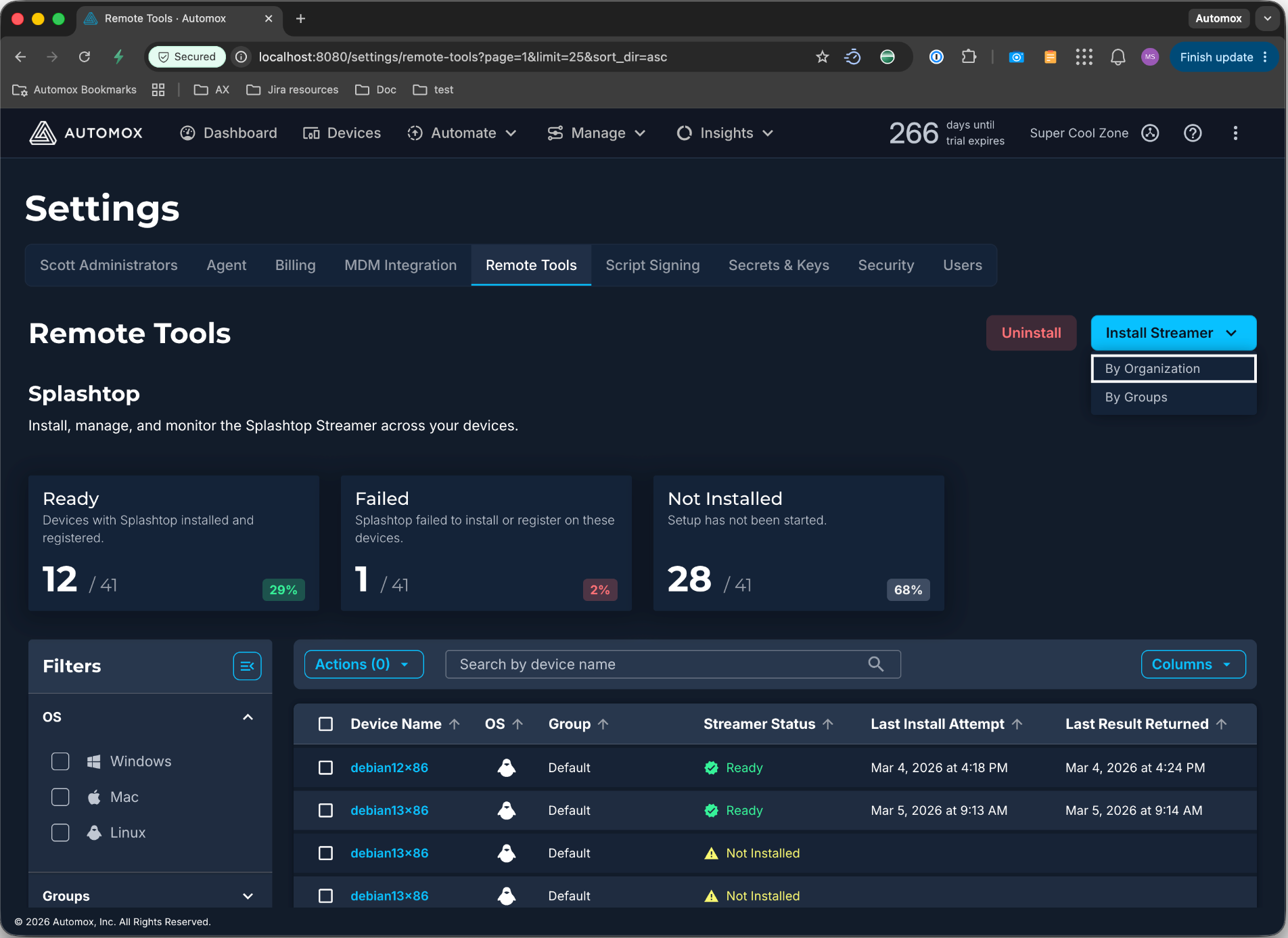
- Navigate to Settings → Remote Tools
- Click Install Streamer and select By Organization
- A confirmation modal displays the organization name and total number of devices. Click Install to Organization to confirm.
- Automox sends a silent installation command to all supported devices in the organization. On Windows, nothing is required for the end-user.
Option 2: Group‑Level Install
- Navigate to Settings → Remote Tools
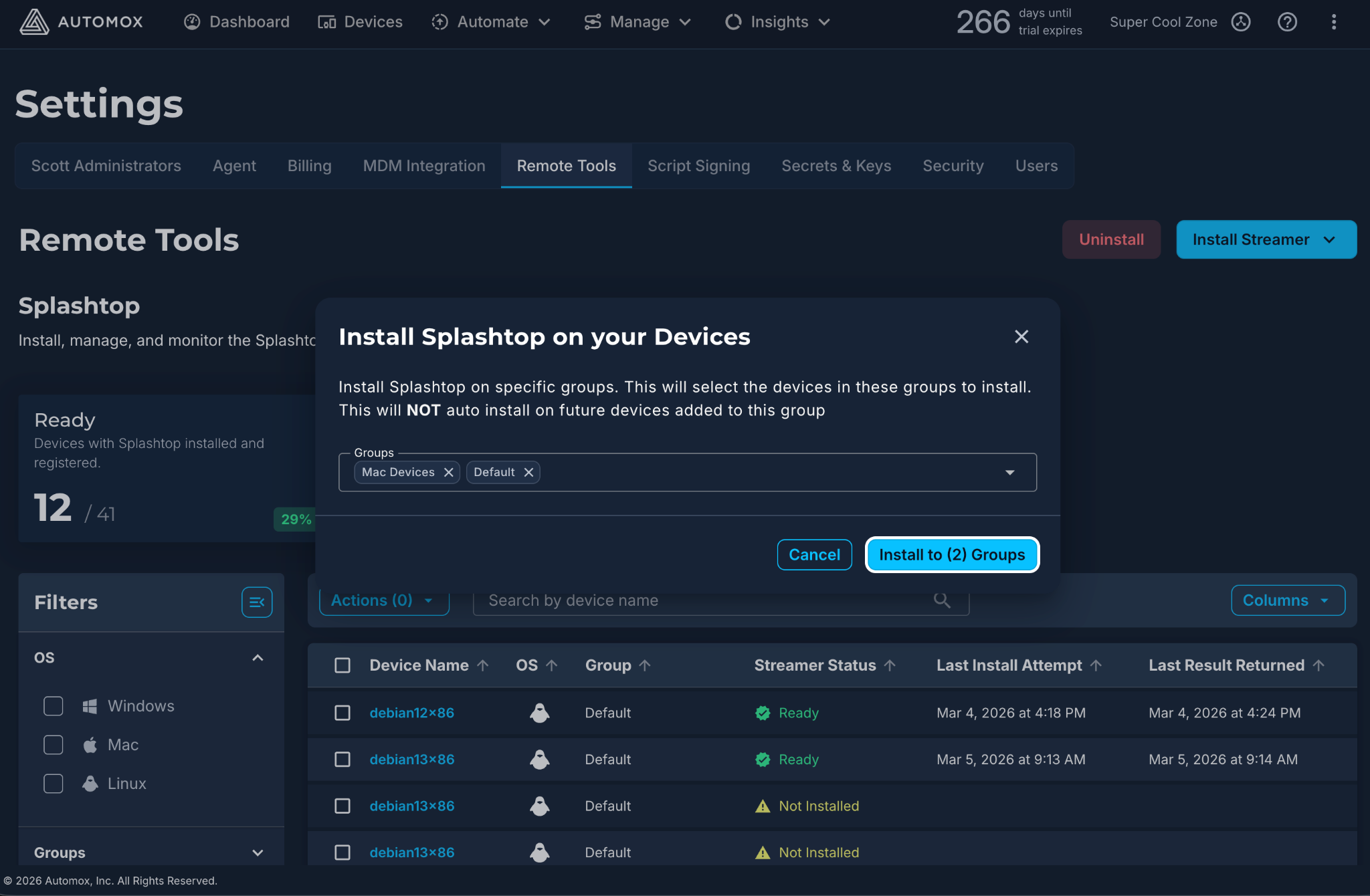
- Click Install Streamer and select By Groups
- Select one or more groups from the group picker and click Install to (N) Groups
- Automox sends a silent installation command to all supported devices in the selected groups
Group-level install is a one-time action applied to devices currently in the selected groups. It does not auto-install on future devices added to those groups.
Option 3: Ad Hoc Install from Remote Tools Settings
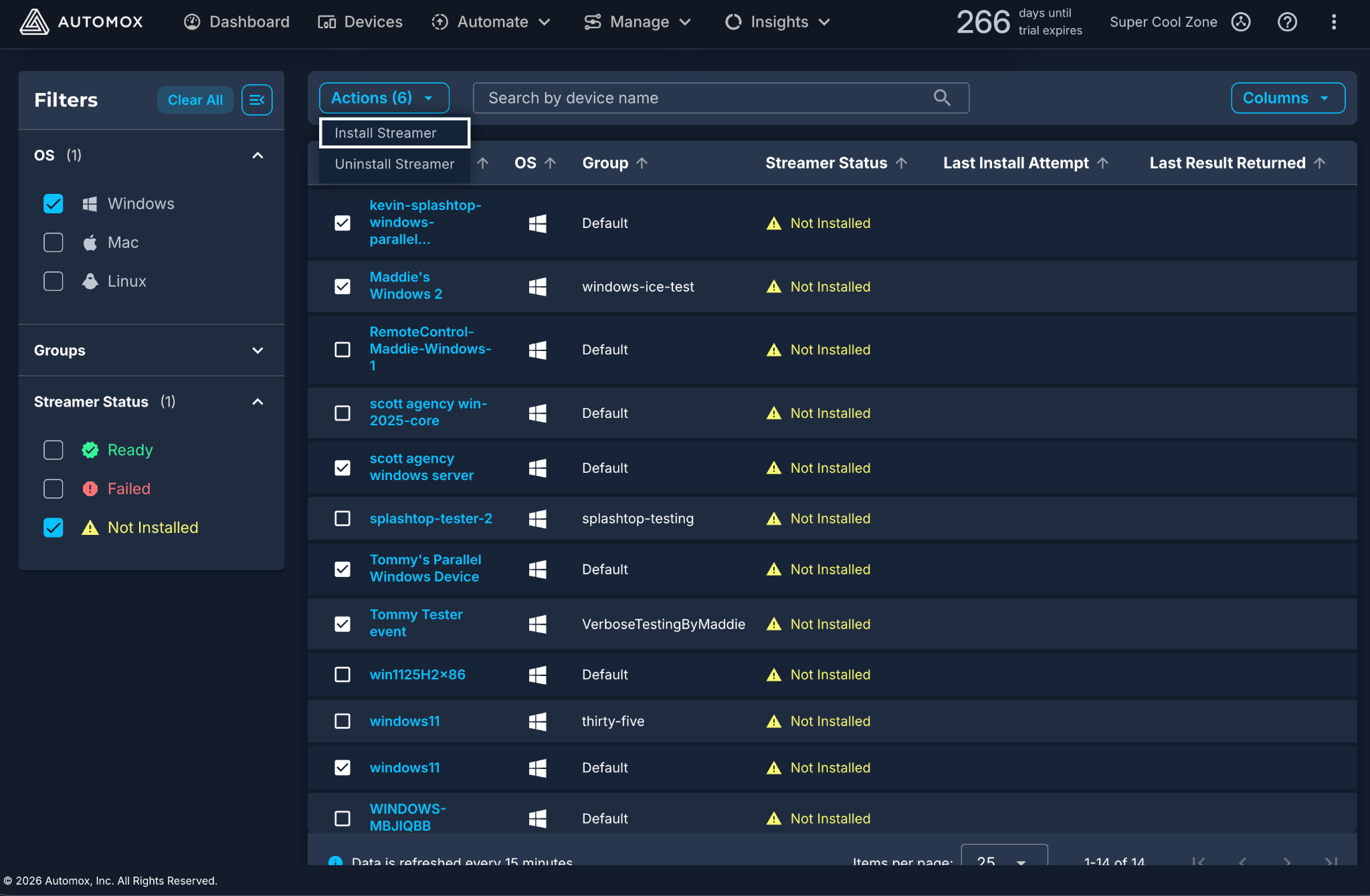
- Navigate to Settings → Remote Tools
- Use filters or search to locate target devices in the device table
- Select one or more devices using the row checkboxes
- Click Actions and select Install Streamer
This is useful for targeted remediation, such as retrying installation on specific devices that previously failed.
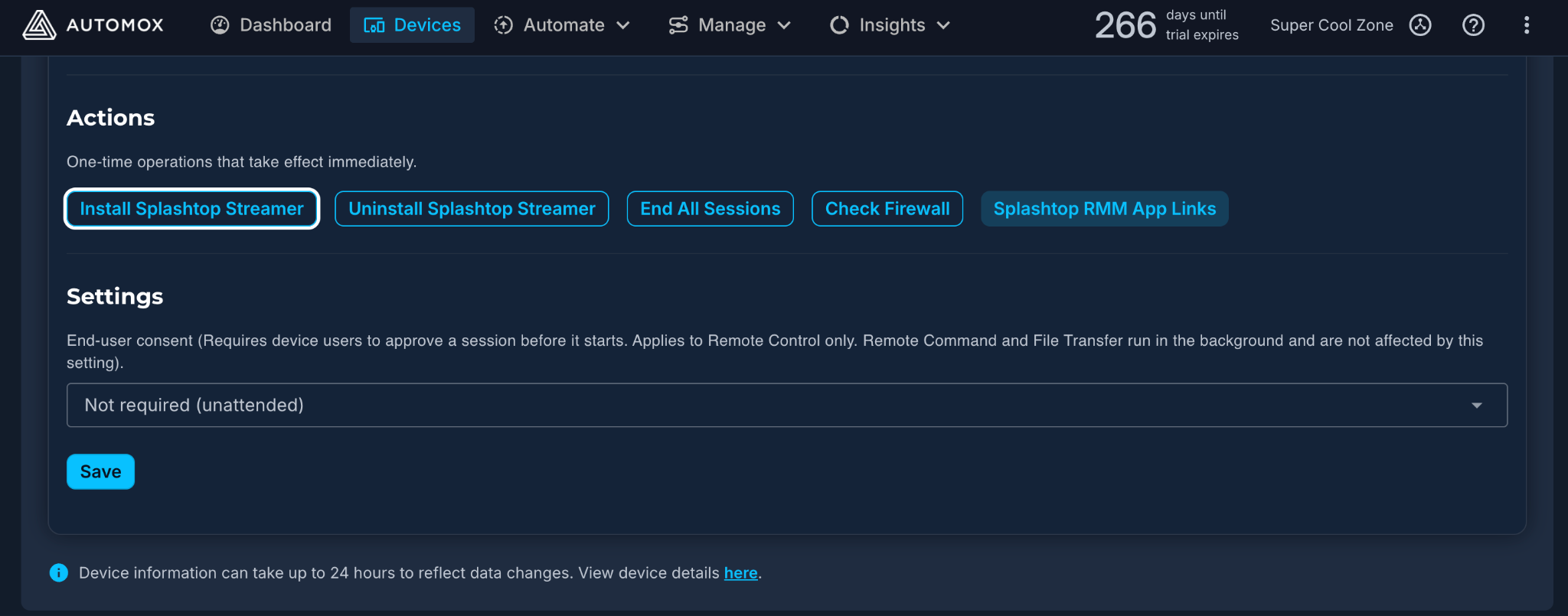
Option 4: Per‑Device Install
- Open the Device Details page
- Expand the Remote Tools section
- Select Install Splashtop Streamer
Option 5: Auto-Install for New Devices
- Go to Settings → Remote Tools
- Under Organization Wide Settings, turn on the New Device Installation toggle
- Click Enable Auto-Install to confirm
The Streamer now installs automatically on every new device added to your organization, including devices you've re-imaged. Devices already in your organization aren't affected.
If an installation fails for a temporary reason — a network error, a download that didn't finish — Automox retries up to 5 times over about 30 minutes. If it still doesn't work, the device shows as Failed in the device table, and you can retry it yourself.
Installation Behavior
- Installation is silent on Windows
- On macOS, the app installs silently but user interaction is required for permissions
- After install:
- The Streamer registers with the Automox–Splashtop backend
- Device status updates appear in the Remote Tools section.
- Auto-install retries on its own: If the first install attempt fails because of a network problem, a download error, or something similar, Automox tries again — up to 5 times. Failures that retrying won't fix, like the wrong installer for the device's operating system, show as Failed right away.
If installation or registration fails, Automox displays a Streamer Status modal with error details and a retry option.
No hierarchy exists between organization-level, group-level, and ad hoc actions. The most recent action executed against a device determines its final state.
How Is the Splashtop Streamer Installed on Windows?
On Windows, the Splashtop Streamer is installed system-wide — not under the currently logged-in user's profile. It runs as a Windows service executed by the SYSTEM account, which means:
- It is available before any user logs in, including at the Windows login screen
- No per-user installation or configuration is required
- The service starts automatically and persists across reboots and user account changes
Remote Tools Settings Page
The Settings → Remote Tools page provides centralized visibility and control over Remote Tools deployment across the organization.
Deployment Health Summary
The top of the page displays deployment health cards showing how many devices are in each status:
- Ready — Streamer installed and registered; eligible for Remote Tools sessions
- Failed — A previous install or registration attempt did not complete successfully
- Not Installed — Streamer is not installed; no install attempt has been made.

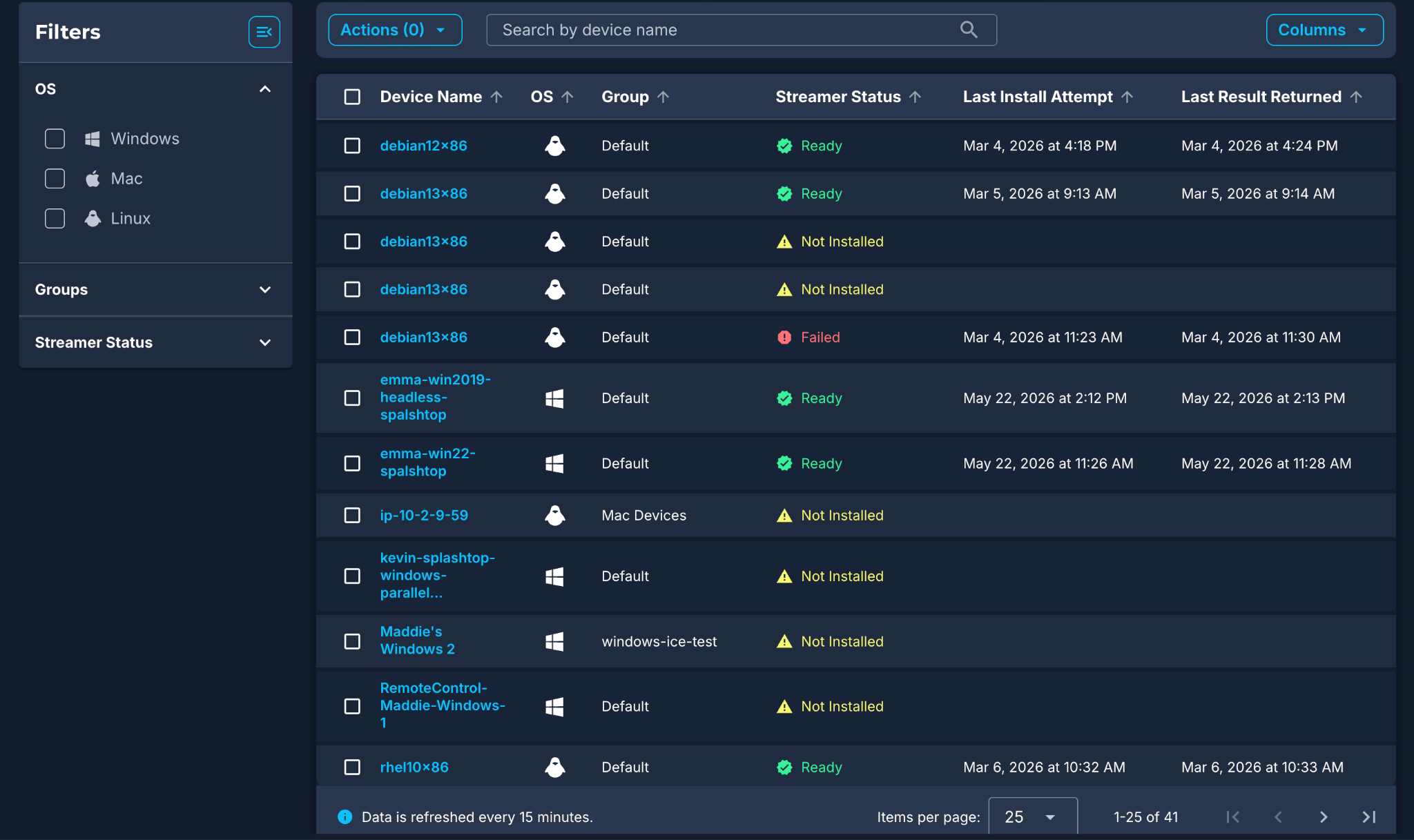
Device Table
A device table lists all devices with their Streamer deployment state. Columns include Device Name, Operating System, Group, Streamer Status, Last Install Attempt, and Last Result Returned.
Admins can filter by OS, Group, and Streamer Status, and search by Device Name. The table supports sorting, column customization, pagination (default 25, up to 500 devices), and row selection for bulk actions.
Note: Data displayed in the device table may be up to 15 minutes old.
Feature Availability
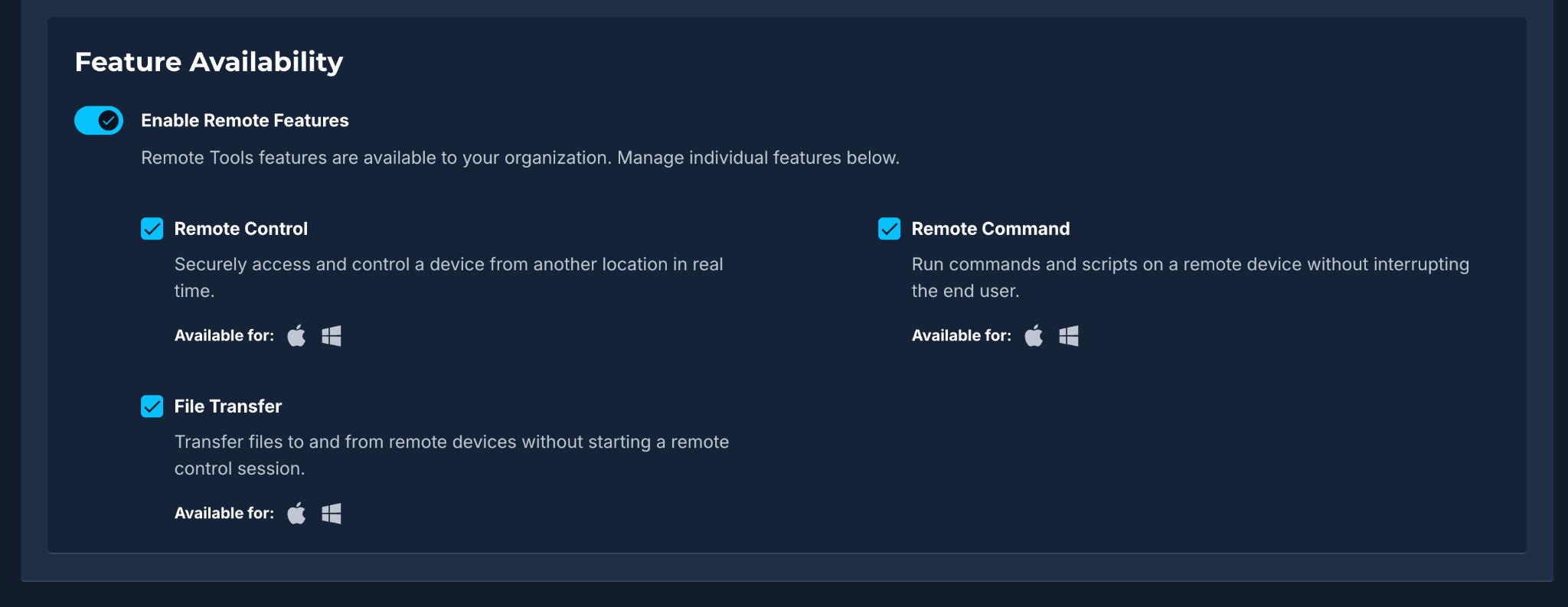
The Feature Availability section controls which Remote Tools features are available to your organization:
- Enable Remote Features (main toggle) — When off, all Remote Tools features are disabled for the org regardless of individual feature settings.
- Individual feature checkboxes — Enable or disable Remote Control, Remote Command, and File Transfer independently.
On Core plan organizations, only Remote Control is displayed and no per-feature checkbox is shown — the Remote Control toggle is the sole control.

macOS Permissions – What’s Required and Why
For Splashtop-maintained, step-by-step macOS permission instructions (including screenshots and OS-specific variations), see How to allow remote access on macOS.
macOS enforces strict privacy controls. Even when the Streamer is installed by IT, Apple requires the end user to approve certain permissions manually.
Required Permissions (Remote Control)
The Splashtop Streamer requires the following for Remote Control sessions:
- Accessibility — Allows keyboard and mouse control
- Screen Recording / Remote Desktop * — Allows screen viewing
Feature‑Dependent Permissions
- Full Disk Access – Required for the technician to read files from the macOS device during File Transfer (in-session or Standalone). Without it, files can be pushed to the device but not pulled from it.
- Microphone – Required for audio during Remote Control sessions
Remote Command on macOS
Remote Command sessions run as root on macOS and do not require any macOS permission grants from the end user.
What IT Can Pre‑Configure
Using MDM tools (Jamf, Intune, etc.), IT can:
- Pre‑approve Accessibility
- Pre‑approve Full Disk Access
- Configure Screen Recording to allow standard users to approve without admin rights
What End Users Will See
After installation, macOS prompts the user to approve permissions:
- Screen Recording prompt appears
- User selects Allow
- User may be directed to System Settings → Privacy & Security
- User enables Splashtop for Screen Recording
- A restart of the Splashtop Streamer may be required
If a prompt is dismissed, permissions can be enabled manually:
System Settings → Privacy & Security → Screen Recording / Microphone / Accessibility / Full Disk Access
Until Screen Recording and Accessibility are approved, Remote Control sessions may launch, but the Splashtop RMM App may appear blank or non-interactive. Remote Command sessions do not require these permissions.
The Remote Tools Button
All Remote Tools features are launched from a unified Remote Tools button on the Device Details page.
- If you have permission to only one feature, the button is labeled with that feature and launches it directly.

- If you have permission to two or more features, the button opens a dropdown listing the features you can access.

Features are shown grayed out (with tooltips) if your plan or the device's OS doesn't support them. Features are hidden entirely if you lack permission or your org has disabled them.
Starting a Remote Tools Session
Remote Control
- Open the Device Details page
- Click Remote Tools and select Remote Control
- Session behavior (prompted or unprompted) depends on the device's effective end-user consent setting — either inherited from the organization default or set as a per-device override. See End-User Consent below.
- If all requirements are met, the Splashtop RMM App launches and the session begins.
Remote Command
- Open the Device Details page
- Click Remote Tools and select Remote Command
- The Splashtop RMM App opens an interactive shell window.
Privilege level: On Windows, sessions run in the system (SYSTEM) context. On macOS, sessions run as root.
Headless / unattended: Remote Command works on devices with no logged-in user and no active display (servers, kiosks).
Standalone File Transfer
- Open the Device Details page
- Click Remote Tools and select File Transfer
- The Splashtop RMM App opens a two-pane file explorer (local on left, remote on right). Drag and drop to transfer files.
macOS Full Disk Access: Without Full Disk Access granted to the Splashtop Streamer, technicians can push files to the device but cannot browse or pull files from it.
System Tools
System Tools brings core Windows administration utilities into Automox as a background feature. No desktop takeover and no interruption to the end user. From a single launch point, you can reach:
- Task Manager - View running processes and live CPU / memory usage, and end processes
- Registry Editor - Browse and edit the Windows registry
- Device Manager - View and manage hardware and drivers; enable, disable, and check device status
- Service Manager - View and control Windows services; start, stop, and set startup type
On macOS, System Tools surfaces Activity Monitor only (the macOS equivalent of Task Manager). Registry Editor, Device Manager, and Service Manager are Windows-only utilities. System Tools is not available on Linux.
System Tools is a single, combined feature. When opened, a new browser tab displays the tools window, and you can navigate between the available utilities from there. The tools cannot be launched, enabled, or permissioned individually. Access to System Tools grants the entire set.
Starting a System Tools Session
- Open the Device Details page
- Click Remote Tools and Select System Tools
- A new browser tab opens with the System Tools window. Navigate between the available utilities from within that window.
Privilege level: On Splashtop RMM App v3.8.2.2 and later, System Tools sessions do not prompt for credentials and run in the system (SYSTEM) context on the endpoint. Earlier Splashtop RMM App versions prompt for credentials.
Headless / unattended: System Tools works on devices with no logged-in user and no active display.
End-User Visibility
IT interactions with remote endpoints result in different visual indicators for the end user:
- Consent Prompts — Apply only to Remote Control. Session behavior (prompted or unprompted) depends on the configured End-user consent setting.
- Session Banners — Apply to Remote Command, Standalone File Transfer, and System Tools. These run in the background but are not fully silent; the logged-in user briefly sees a gray banner ("[Technician Name] has connected to this computer") and a persistent "Session in progress" indicator. No consent dialog is shown.
End-User Consent
End-user consent determines whether the logged-in user must approve a Remote Control session before it starts. Consent applies to Remote Control only — Remote Command, File Transfer, and System Tools are not affected.
Organization Default
Administrators set an organization-wide default consent mode from Settings → Remote Tools → Remote Control End-User Consent. Every device inherits this default unless individually overridden. Four consent modes are available:
| Mode | Behavior |
|---|---|
| Required (attended) - default | User must approve. At login screen with no user, session starts automatically. |
| Not required (unattended) | Session starts immediately. No prompt is shown. |
| Required — deny on timeout | User has 30 seconds to approve; otherwise session fails. No user → denied. |
| Required — allow on timeout | User has 30 seconds to approve; otherwise session starts automatically. |
End-User Consent Behavior
End-user consent controls whether a user must approve a session — and what happens if the user does not respond.
Consent applies to Remote Control only. Remote Command, Standalone File Transfer, and System Tools run in the background and are not affected by this setting.
End-user consent is configured per device in the Settings area of the Remote Tools section on Device Details. Only full administrators or custom roles with the Remote Control Consent: Manage permission can modify consent behavior.
Change Consent Behavior
- Open Device Details
- Open the Remote Tools section
- In Settings, select the desired End-user consent option
- Click Save to apply the change
Changes are not applied until Save is clicked.
Bulk updates are available via Devices → Actions → Configure Remote Control.
Device Overrides
You can override the organization default on specific devices from Device Details → Remote Tools → Settings, or in bulk from Devices → Actions → Configure Remote Control or the Remote Tools Settings device table.
An override stays pinned even when the organization default changes — unless cleared or reset by the daily enforcement toggle.
Enforce Organization Default Daily
When enabled in Settings → Remote Tools, the Enforce Organization Default Daily toggle resets all per-device overrides to the organization default once per day (5:00 PM Pacific). This ensures a consistent consent posture across the fleet while still allowing same-day temporary overrides for support sessions.
Permissions
| Permission | Controls | Default Roles |
|---|---|---|
| Remote Control Consent: Manage | Change the org default, set per-device overrides, clear overrides, toggle daily enforcement | Full Administrator |
| Settings: Read | View the org default and per-device consent values (read-only) | Full Administrator, Helpdesk Operator, Organization Operator |
If your session doesn't connect
If the Splashtop Streamer is installed and registered but the session fails to start, use Check Firewall from the Remote Control section on the Device Details page.
Check firewall verifies that the device can reach required Splashtop and Automox services and is the fastest way to identify firewall or network-related issues.
Understanding the Remote Tools Section
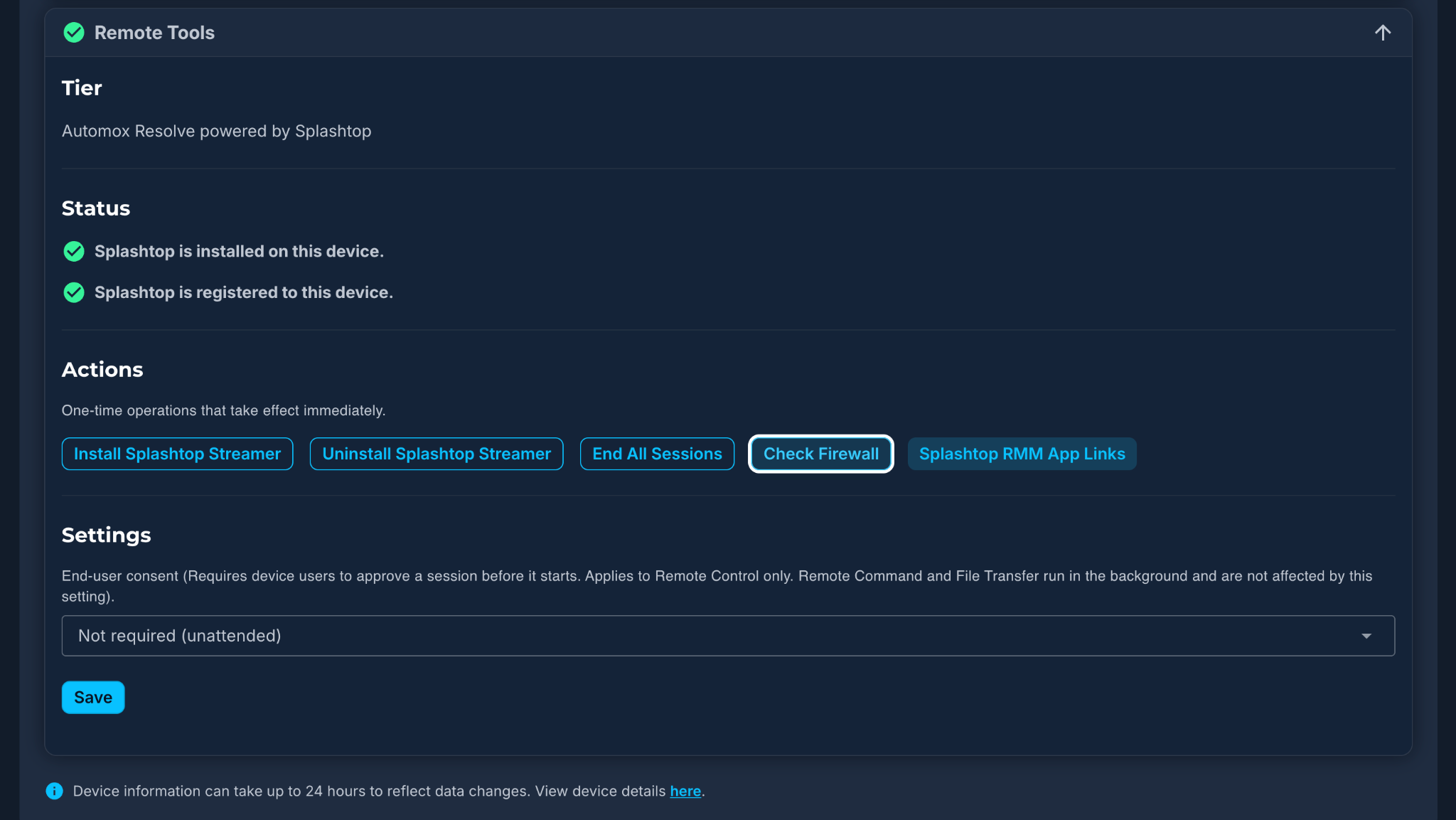
The Remote Tools section on the Device Details page is organized into four areas to make it easier to understand readiness, available actions, and configuration.
- Tier – Indicates which Remote Tools tier is enabled for the device (Core or Automox Resolve powered by Splashtop).
- Status – Shows whether the Splashtop Streamer is installed and registered.
- Actions – One-time operations such as installing or uninstalling the Streamer, ending active sessions (across all features), running a firewall check, or viewing the Splashtop RMM App links.
- Settings – Persistent configuration options that control Remote Tools behavior, including end-user consent.
Screen Recording Controls
Screen Recording Controls give organizations governance over whether and how Remote Control sessions are recorded. Recording applies to Remote Control only. Remote Command, File Transfer, and System Tools run in the background with no screen and produce no recordings.
By default, recording is manual: the technician starts and stops it from the recording control in the Splashtop RMM App. Screen Recording Controls add two org-level options, configured on the Settings → Remote Tools tab:
- Auto-record (technician may stop): Recording starts automatically at the beginning of every Remote Control session; the technician can stop the recording.
- Auto-record, locked (technician cannot stop): Recording starts automatically at session start and the technician cannot stop the recording for the session duration.
These settings are strictly org-level (no per-user, per-role, or per-session override) and only one recording mode is active at a time. The default is manual recording. All recording preferences are governed by the existing Organization: Manage permission; no new permission is required. Recordings are saved locally to the technician’s device, org-level configuration of storage location is not currently available.
Using the Remote Session in the Splashtop RMM App
When the session begins, the Splashtop RMM App displays the remote desktop and a navigation bar with session controls.
Splashtop Session Controls (Quick Reference)
Note: You can hover over the icons to identify the control.
| Control | Description |
|---|---|
 Disconnect Disconnect
|
Ends the remote session and returns you to the Automox console. |
 RDP Switch Session (Resolve) RDP Switch Session (Resolve) |
Displays when multiple remote desktop sessions are active on the remote machine. Allows you to toggle between active Windows sessions (for example, different logged-in users). |
 Switch Monitor Switch Monitor
|
Switch between individual monitors on the remote device. Available on both Core and Resolve. Resolve users can also use "All Monitors (One Window)" to view all monitors simultaneously in a single combined view. |
 View Settings View Settings
|
Adjusts display options including scaling, quality, and cursor visibility. |
 Full Screen Full Screen
|
Expands the view to fill the administrator's display. Press Escape to exit. |
 Ctrl+Alt+Del Ctrl+Alt+Del
|
Sends the Ctrl+Alt+Delete command to the remote Windows device. |
 Record Session (Resolve) Record Session (Resolve) |
Records the current remote session. |
 In-Session File Transfer (Resolve) In-Session File Transfer (Resolve) |
Transfers files securely between devices during an active Remote Control session. |
 Chat (Resolve) Chat (Resolve) |
Opens a text chat window for communication with the remote user. |
 Actions Actions
|
Screen and input controls. |
A complete description of all session controls appears in Automox Remote Tools with Splashtop – Full User Guide .
End a Session
You can end a Remote Control or File Transfer session in either of the following ways:
- Select Disconnect in the Splashtop RMM App (Splashtop RMM App).
- Close the session window.
For Remote Command sessions, close the shell window or use the Disconnect action.
Concurrent Sessions
Each open Remote Tool uses one connection to a device. The number of simultaneous connections a single device can have depends on your plan: Core allows 1 connection per device; Resolve allows up to 3, shared across Remote Control, Remote Command, and File Transfer (each open session uses one connection). For example, a device running 1 Remote Control and 1 Remote Command session has 2 of 3 slots occupied. System Tools sessions do not count as a connection and are additive, they do not consume a slot.
How connections are counted:
- Connections are counted per device across all technicians — it makes no difference whether one technician or several open them.
- Connections to different devices are unlimited on both plans. The limit applies only to simultaneous connections to the same device.
- When a device reaches its limit, the next connection to that device is blocked until an active one ends.
- System Tools do not count toward the per-device limit.
Clear Session / Disconnect All ends all active Remote Tools sessions on the device (across all features), not just one.
Session tracking caps: To prevent stuck or hung sessions from blocking new ones, Automox automatically removes sessions from its tracking system after fixed caps:
| Session Type | Tracking cap |
|---|---|
| Failed or hanging connection attempts | 30 seconds |
| Successful File Transfer sessions | 1 hour |
| Successful Remote Control and Remote Command sessions | 4 hours |
These caps apply to Automox's session tracking only — they free up the session slot for new connections and do not forcibly terminate the live Splashtop session.
Managing Updates and Uninstalls
Updates
- The Splashtop Streamer and Splashtop RMM App are listed in the Automox Third-Party Software Catalog
- Both can be updated using standard Automox patch policies Policy type automating OS and third-party patching, or a Canopy configuration that defines which devices get which macOS update, and when.
Uninstall Options
Administrators can uninstall the Splashtop Streamer using any of the following supported methods:
Option 1: Organization-Wide Uninstall
- Navigate to Settings → Remote Tools
- Select Uninstall Splashtop Streamer
- In the confirmation modal, select Organization and confirm
- Automox sends a silent uninstallation command to all supported devices in the organization
Option 2: Group-Level Uninstall
- Navigate to Settings → Remote Tools
- Click Uninstall
- In the confirmation modal, select Groups, choose one or more groups, and confirm
- Automox sends a silent uninstallation command to all supported devices in the selected groups
Option 3: Ad Hoc Uninstall from Remote Tools Settings
- Navigate to Settings → Remote Tools
- Select one or more devices from the device table
- Click Actions and select Uninstall Streamer
Option 4: Per-Device Uninstall
- Open the Device Details page for the device
- Expand the Remote Tools section
- Select Uninstall Splashtop Streamer
Option 5: Worklet-Based Uninstall
- Use one of the Splashtop Uninstall Worklets found under Software Lifecycle in the Automox Worklet Catalog Respository of pre-built, Automox-verified worklets, available in the Automox Console.
- The worklet runs silently and requires no end-user interaction
All uninstall methods fully remove the Splashtop Streamer from the device.
Troubleshooting
| Issue | Probable Cause | Solution |
|---|---|---|
| Remote Tools button is grayed out | Device is offline | Check device connectivity |
| Remote Tools button does not appear | Org has Remote Tools disabled, or user lacks permission to any feature | Check Settings → Remote Tools feature availability; verify user role |
| macOS shows black screen during Remote Control | Permissions not granted | Ask the user to enable Screen Recording and Accessibility permissions |
| File Transfer cannot read files from a macOS device | Full Disk Access not granted | Ask the user to grant Full Disk Access to the Splashtop Streamer |
| “Unsupported Agent Version” | Agent older than 2.4.33 | Upgrade to the latest Automox Agent |
| Session won’t close | Splashtop RMM App crashed | Click Clear Session in the Splashtop Status modal — this ends all active Remote Tools sessions on the device |
| Multiple devices show Failed status | Installation did not complete | Use the device table on Settings → Remote Control to filter by Failed status, select affected devices, and retry installation via the Actions menu |
| Auto-install didn't run on a new device | Auto-install isn't turned on for your organization. | Go to Settings → Remote Tools → Organization Wide Settings and turn on the "New Device Installation" toggle. Auto-install only covers devices added after you turn it on. |
| Auto-install shows Failed | The installation failed 5 times for temporary reasons, or hit an error that retrying won't fix (wrong installer for the operating system, missing install location) | Check the error in the Settings → Remote Tools device table. For temporary errors, retry from the Actions menu. For the others, confirm the device's operating system is supported and meets the prerequisites. |
| A re-imaged device didn't get the Streamer | Automox didn't recognize the device's hardware, or auto-install is turned off | Confirm auto-install is on. If it is and the Streamer still isn't there, install it manually from Device Details → Remote Tools. |
| Consent setting reverts after being changed on a device | "Enforce Organization Default Daily" is enabled | Check Settings → Remote Tools → End-User Consent. If the "Enforce Organization Default Daily" toggle is on, all per-device overrides reset to the org default once per day (5:00 PM Pacific). Disable the toggle if overrides should persist, or change the org default instead. |
| Changed the org default but some devices still use the old value | Those devices have per-device overrides | Devices with overrides are not affected by org default changes unless you chose "Apply to all devices" when saving. Re-open Settings → Remote Tools → End-User Consent and save with "Apply to all devices" to clear all overrides, or update those devices individually from Device Details. |
More troubleshooting steps are available in Remote Tools with Splashtop – FAQ and Troubleshooting.
Quick Reference
| Category | Detail |
|---|---|
| Core Features | Remote Control |
| Resolve Features | Remote Control, Remote Command, Standalone File Transfer, System Tools |
| Concurrent sessions | Up to 3 per device, shared across Remote Control / Remote Command / File Transfer (Resolve). System Tools is additive and does not consume a slot. |
| Session tracking caps | 30 sec (failed / hanging) · 1 hr (File Transfer) · 4 hr (Remote Control / Remote Command) |
| In-session file transfer limit | 64 GB (Resolve, during a Remote Control session) |
| Agent version required | 2.4.33 |
| Splashtop RMM App platforms | Windows, macOS |
| Streamer platforms | Windows, macOS |
| Linux support | Not supported in this release |
| Default consent mode | Required (attended) — applies to Remote Control only |
| Remote Command shells | Windows: CMD, PowerShell (5.1+); macOS: Bash, Zsh |
| System Tools | Windows: Task Manager, Registry Editor, Device Manager, Service Manager macOS: Activity Monitor only Resolve Only: Full Administrator only Requires RMM App v3.8.2.2+ for no credential prompt |
| Screen Recording Controls | Org-level: Manual (default) / auto-record (stoppable) / auto-record locked / disabled. Remote Control only. Governed by Organization: manage. |
| Install Scopes | Organization-wide, group-level, ad hoc (device table), per-device |
| Uninstall Scopes | Organization-wide, group-level, ad hoc (device table), per-device, worklet |
| Auto-Install | Organization-level toggle (Settings → Remote Tools). Installs the Streamer automatically on new and re-imaged devices. |
| Auto-Install Retry | Temporary failures retry up to 5 times, about 5 minutes apart. Failures that can't be fixed by retrying show as Failed right away. |
| Default Consent Mode | Required (attended) — applies to Remote Control only. Organization default inherited by all devices; per-device overrides available. |
| Consent Model | Organization default + per-device override. Overrides stay pinned unless cleared or daily enforcement is on. |
| Enforce Daily | Off by default. When on, resets all overrides to the org default daily at 5:00 PM Pacific. |
| Consent Enforcement | At connection time — no agent command needed to apply changes. |
