Deploying Automox Notification Configuration Profile via Jamf Pro
Automox notifications Configurable end user messaging sent by AXP. are critical and must be turned on for every macOS device A subset of Assets, a general term denoting anything that runs the Automox Agent and is registered with the system. that Automox manages. If the Automox Notifier is not enabled, a device might queue up a patch A software security or stability update., but it will never actually restart and apply the patch properly.
You can solve this by either creating a new Configuration Profile in Jamf or amending an existing one.
Create or amend a Configuration Profile
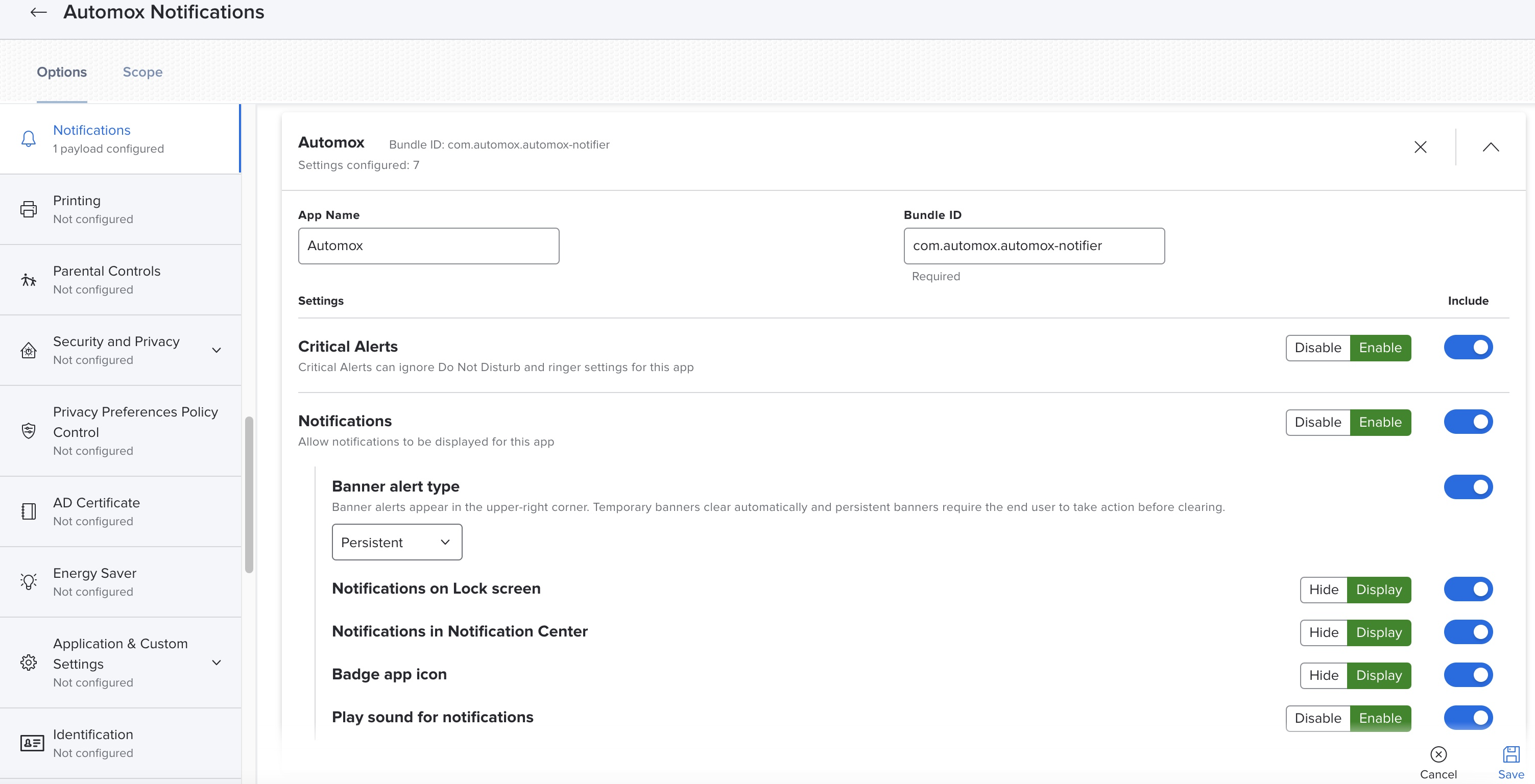
To create or amend the configuration in Jamf Pro, navigate to Configuration Profiles. Select to add or edit the existing profile then select Notifications. Use the configuration listed here:
| Payload Configuration |
|---|
|
App Name: Automox |
|
Bundle ID: com.automox.automox-notifier |
|
Critical Alerts: Enabled |
|
Notifications: Enabled |
|
Banner alert type: Persistent |
|
Notifications on Lock screen: Display |
|
Notifications in Notification Center: Display |
|
Badge app icon: Display |
|
Play sound for notifications: Enable |
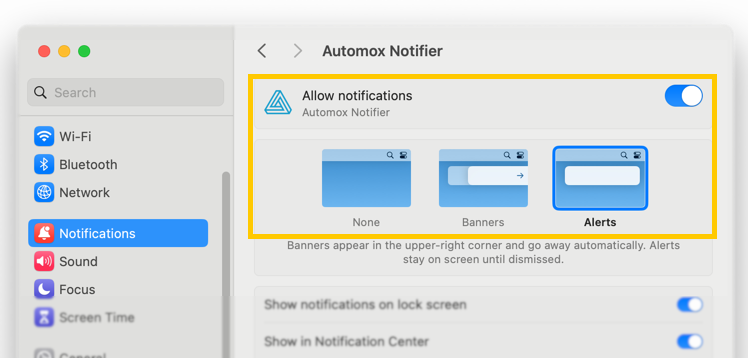
When configured properly, this is what the settings look like on the device under System Settings → Notifications:
/Library/Application Support/Automox/ and run the "Automox Notifier."