Canopy MDM Integration
Overview - What is Canopy?
Canopy Automox's capability for connecting to and managing devices through your existing MDM, from inside the Automox console, as an integration.
connects Automox to the
MDM The system you use to enroll and manage devices (for example, Jamf Pro or Microsoft Intune).
you already use, Jamf Pro or Microsoft Intune, so you can manage and patch MDM-enrolled devices from
inside the Automox console, alongside the devices your Automox agent already manages.
Automox's capability for connecting to and managing devices through your existing MDM, from inside the Automox console, as an integration.
connects Automox to the
MDM The system you use to enroll and manage devices (for example, Jamf Pro or Microsoft Intune).
you already use, Jamf Pro or Microsoft Intune, so you can manage and patch MDM-enrolled devices from
inside the Automox console, alongside the devices your Automox agent already manages.
In this release, Canopy lets you:
- Connect your MDM to Automox with a guided setup flow.
- Patch macOS devices by creating and scheduling macOS update policies, without writing or editing scripts.
- Manage everything in one place: see your connected MDMs, the policies tied to each, and take action from a single screen.
Canopy works with, and does not replace, your MDM or the Automox agent:
- Your MDM remains the system of record and the management authority for enrolled devices. Canopy sends instructions to it through the MDM's API.
- The Automox agent continues to manage the devices it manages today. Canopy extends Automox's reach to devices the agent doesn't run on directly.
Before you begin: requirements & prerequisites
Supported MDMs (this release)
|
MDM |
Supported |
Notes |
|---|---|---|
|
Jamf Pro |
Yes |
Jamf Cloud and on-premises Jamf Pro, as long as the Jamf Pro API is reachable from Automox. |
|
Microsoft Intune |
Yes |
Connects via the Microsoft Graph API. Your Intune tenant remains the MDM authority. |
|
Jamf School |
No |
Different product and API; not supported. |
|
Jamf Now |
No |
Jamf Now has no public API and cannot be connected. |
|
Other MDMs (e.g., Apple Business, Google / ChromeOS, others) |
No |
Not available in this release. |
What you'll need to connect
- Jamf Pro
- Microsoft Intune
For Jamf Pro:
- Your Jamf Pro base URL (for example,
https://yourorg.jamfcloud.com) - A Client ID and Client Secret for a Jamf Pro API client with the required privileges.
- Network reachability between Automox and your Jamf Pro instance (confirm with your network team for on-premises Jamf Pro).
For additional details, view Jamf's setup guide.
For Microsoft Intune:
- Your Azure tenant ID
- An app registration client ID and client secret (Microsoft Graph API, OAuth2)
- The app registration must be granted the required Microsoft Graph permissions and admin consent.
For additional details view Microsoft’s setup guide.
Account and permissions
- You need a Canopy / Automox role with permission to manage MDM integrations and create patch policies. See Roles & permissions .
Other notes
- One Jamf Pro instance per organization is supported in this release. If you have multiple Jamf Pro instances, contact your Automox representative.
- macOS update policies created through Canopy apply to MDM-enrolled Macs. See How Canopy patches Apple Silicon Macs (Bootstrap Token) for how silent macOS updates work on Apple Silicon.
Connect an MDM to Canopy
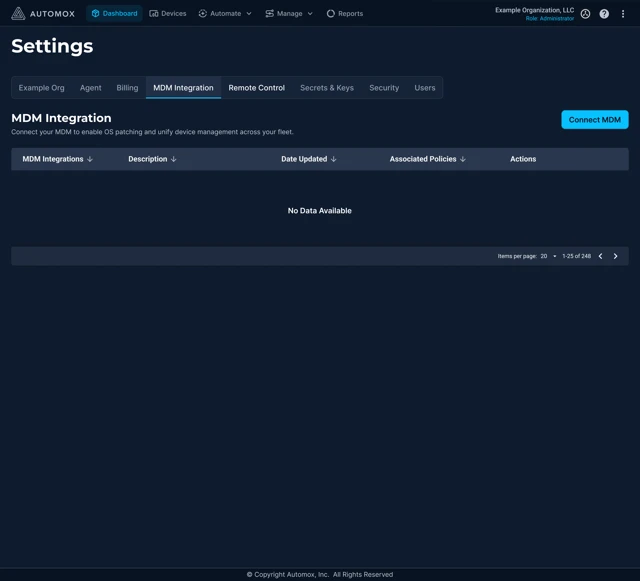
You connect an MDM from Settings → MDM Integration. The first time you open this page with no MDM connected, it shows an empty state.
General flow (applies to all providers):
- Go to Settings → MDM Integration.
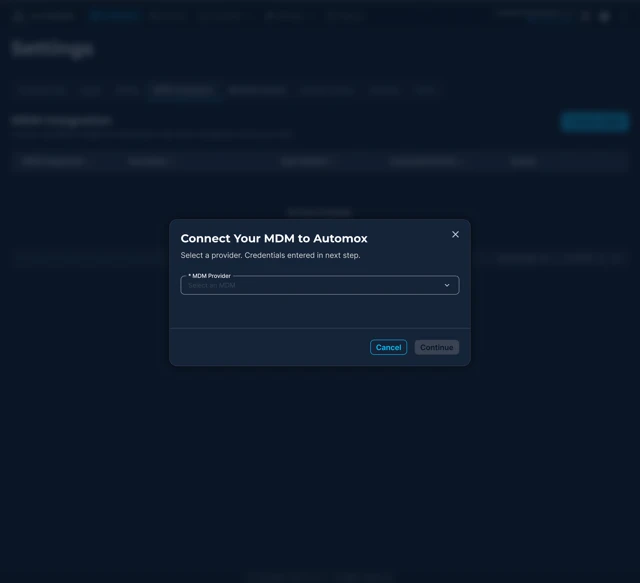
- Select Connect MDM.
- Choose your provider (Jamf Pro or Microsoft Intune).
- Review the prerequisites shown for that provider.
- Enter the required credentials (see below).
- Select Connect to confirm the credentials work. A confirmation message appears when the connection succeeds.
- From the success screen, you can continue directly to How Canopy patches Apple Silicon Macs (Bootstrap Token) .
Once connected, the MDM appears as a row on the MDM Integration table.
Connect Jamf Pro
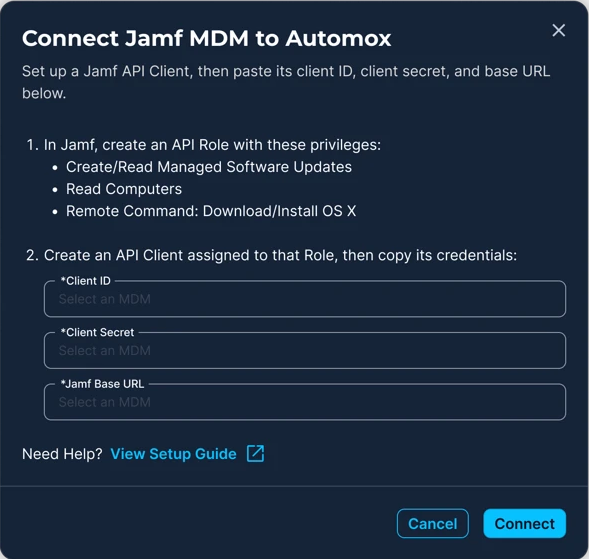
Credentials required: Client ID, Client Secret, Base URL.
To get these in Jamf Pro (high level, confirm against current Jamf UI):
- In Jamf Pro, go to Settings → API roles and clients.
- Create an API Role with the privileges Canopy requires:
- Create Managed Software Updates
- Read Managed Software Updates
- Read Computers
- Send Computer Remote Command to Download and Install OS X Update
- Create an API Client, assign the role, and enable it.
- Copy the Client ID and generate a Client Secret.
- Note your Jamf Pro base URL (for example,
https://yourorg.jamfcloud.com).
For additional details view Jamf’s setup guide.
In Automox:
- Settings → MDM Integration → Connect MDM → Jamf Pro.
- Enter the Base URL, Client ID, and Client Secret.
- Validate, then Save.
Connect Microsoft Intune
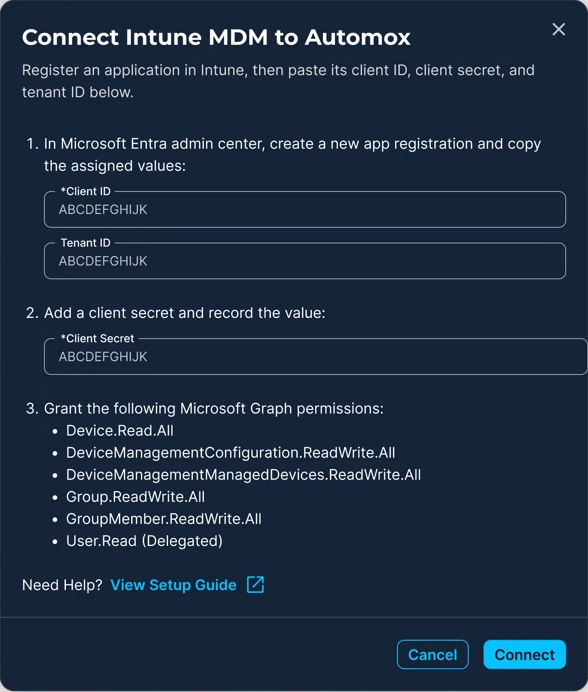
Credentials required: Azure tenant ID, client ID, client secret.
To get these in Microsoft Entra ID (high level, confirm against current Azure UI):
- In the Microsoft Entra admin center, register an application (App registrations → New registration).
- Note the Application (client) ID and Directory (tenant) ID.
- Under API permissions, add the required Microsoft Graph permissions and grant admin consent.
Device.Read.AllDeviceManagementConfiguration.ReadWrite.AllDeviceManagementManagedDevices.ReadWrite.AllGroup.ReadWrite.AllGroupMember.ReadWrite.AllUser.Read (Delegated)
- Under Certificates & secrets, create a client secret and copy its value immediately.
For additional details view Microsoft’s setup guide.
In Automox:
- Settings → MDM Integration → Connect MDM → Microsoft Intune.
- Enter the Tenant ID, Client ID, and Client Secret.
- Validate, then Save.
Create a macOS patch policy
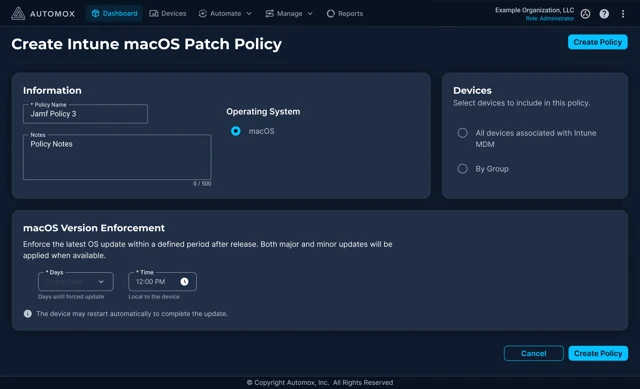
After an MDM is connected, you can create macOS update policies for the Macs that MDM manages. Canopy provides a guided interface for this. You do not need to write or edit any scripts.
To create a macOS patch policy:
- Go to Settings → MDM Integration.
- On the row for the MDM you want, open the Actions menu and select Create Patch Policy, or use Create Patch Policy from the connection success screen.
- Complete the policy form. See Patch policy fields for reference.
- Save the policy.
Patch policy fields
|
Field |
What it does |
Notes |
|---|---|---|
|
Policy name |
A label for the policy. |
Name validation applies. Some characters may not be allowed. |
|
Device targeting |
Which devices the policy applies to. |
Target a device group (selected through a group picker) or all devices for that MDM. |
|
Version enforcement |
Which macOS version to enforce. |
Choose between Latest OS Version or configure major and minor enforcement independently with the Custom option. |
|
Enforcement scheduling |
How long after a release until the update is forced. |
Set a delay (in days) and an install time (local to the device). |
How the update is delivered: The policy runs through your MDM's update mechanism behind the scenes (See How Canopy patches Apple Silicon Macs (Bootstrap Token) for why this matters on Apple Silicon Macs for more details).
- Due to the nature of these updates being executed by the MDM, Automox’s control over notifications is limited. Additionally, devices may restart automatically to complete the update.
Manage integrations & policies
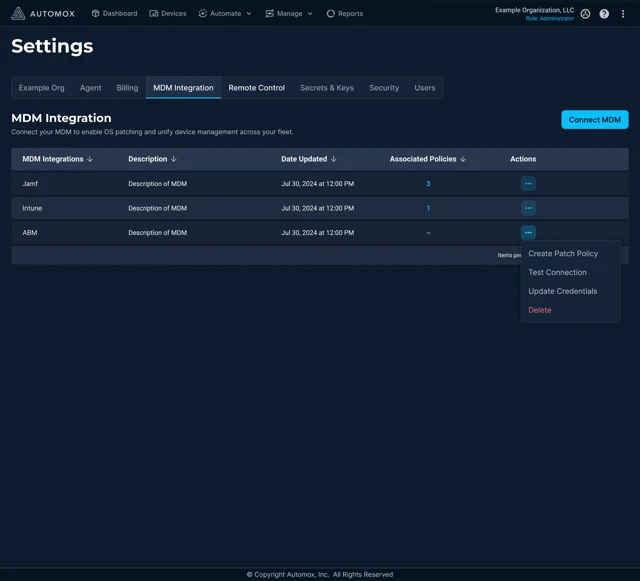
The MDM Integration table is the home base for everything you've connected. Each row shows the MDM and a count
of its Associated Policies The set of patch policies tied to a specific MDM integration., with an Actions menu.
Integration actions
From a row's Actions menu you can:
|
Action |
What it does |
|---|---|
|
Create Patch Policy |
Opens the macOS patch policy form for that MDM (Section 4). |
|
Test Connection |
Re-checks that the stored credentials are valid and the MDM is reachable. |
|
Update Credentials |
Re-enter or rotate the provider's credentials. |
|
Delete |
Removes the integration. |
Associated Policies
Select the Associated Policies count on a row to open a side panel listing every policy tied to that integration.
The panel shows, per policy: Policy Name, Delay (in days), Install Time, and row actions.
From the Associated Policies panel you can:
- Edit a policy: reopens the policy pre-filled so you can change targeting, enforcement, or scheduling.
- Delete a policy: removing a policy can be undone immediately after the action, so an accidental deletion is recoverable.
Update credentials
If your MDM credentials change or need rotating, use Update Credentials from the integration's Actions menu, enter the new values, validate, and save.
Delete an integration
Deleting an integration removes the connection between Automox and that MDM. Additionally, all associated policies will also be deleted.
Roles & permissions
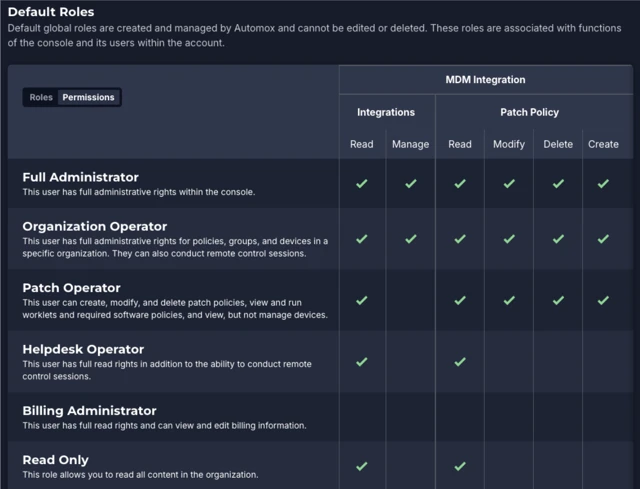
Canopy adds an MDM Integration permission category so you can control who can connect MDMs and who can work with patch policies. It contains two permission groups:
|
Permission group |
Controls |
Available permissions |
|---|---|---|
|
Integrations |
Connecting, configuring, testing, and removing MDM connections. |
Read (view only) · Manage (full lifecycle: connect, update / rotate credentials, validate, disconnect) |
|
Patch Policy |
Working with macOS patch policies. |
Read · Modify · Delete · Create |
Read-only experience
Users with view-only access see a streamlined experience: actions they cannot perform are hidden (not shown as disabled), and policies open in a read-only View Policy view.
Default role mapping
|
Role |
Integrations |
Patch Policy |
|---|---|---|
|
Full Administrator |
Manage |
Full |
|
Organization Operator |
Manage |
Full |
|
Patch Operator |
Read (view only) |
Full |
|
Helpdesk Operator |
Read (view only) |
Read (view only) |
|
Read Only |
Read (view only) |
Read (view only) |
|
Billing Administrator |
No access |
No access |
How Canopy patches Apple Silicon Macs (Bootstrap Token)
Why this matters: On Apple Silicon Macs, an automated ("silent") macOS update must be authorized by a Bootstrap Token that is escrowed to an MDM. A management tool cannot trigger these updates on its own.
How Canopy handles it: Canopy uses your existing MDM's authority to deliver macOS updates. It sends the update instruction through your MDM (Jamf Pro or Intune) via the MDM's API, and the MDM applies the update using the Bootstrap Token it already holds. Automox does not need to be your MDM or hold any MDM authority of its own.
What you need: The target Macs must be enrolled in a connected MDM, with the Bootstrap Token escrowed to that MDM.
Data freshness & sync behavior
The information Canopy shows about MDM-managed devices is as fresh as each source allows. Different sources update on different schedules:
Source | Typical freshness |
|---|---|
Automox agent | Near real time |
Jamf Pro | Near real time for events; inventory roughly daily |
Microsoft Intune | Compliance evaluations roughly every 8 hours; reporting can lag up to ~24 hours after a device syncs |
Because of this, data sourced from Intune may appear less current than data from Jamf Pro or the Automox agent. This is expected.
Tip: For the most up-to-the-minute device state, the Automox agent is the fastest source.
What's included in this release
Available now:
- Connect Jamf Pro and Microsoft Intune.
- Create, schedule, edit, and delete macOS update policies through a connected MDM.
- Manage connections and policies from Settings → MDM Integration (Associated Policies, Test Connection, Update Credentials, Delete).
- Role-based access for MDM Integration and Patch Policy.
Not available in this release:
- Additional MDM connectors beyond Jamf Pro and Intune.
- A unified, cross-platform compliance dashboard and audit-ready reporting.
- Remote device commands (for example, lock, wipe, restart) from the Automox console.
Troubleshooting
Symptom | Likely cause | What to do |
|---|---|---|
Connection fails during setup | Incorrect credentials, insufficient API privileges, or the MDM API isn't reachable. | Re-check the Client ID / Secret / URL (Jamf) or Tenant / Client ID / Secret (Intune); confirm the API client /app has the required privileges and consent; for on-premises Jamf Pro, confirm network reachability. |
Data looks out of date / "slow" | Source freshness, especially Intune's evaluation and reporting cycles. | Expected behavior; see Data freshness & sync behavior . Use the Automox agent for near-real-time state. |
You can't see Connect, Create, or Edit actions | Your role has view-only (Read) access. | Confirm your role; an admin with Manage / Create permissions can perform these actions. See Roles & permissions . |
A Jamf Now environment won't connect | Jamf Now has no public API. | Jamf Now is not supported. Jamf Pro is required. |
FAQ (customer-facing)
Does Canopy require me to have an MDM?
Which MDMs can I connect right now?
Does Canopy work alongside the Automox agent?
Does Canopy support on-premises Jamf Pro?
Does Canopy support Jamf School or Jamf Now?
Can I connect more than one Jamf Pro instance?
Can Canopy manage Windows, Android, tablets, or ChromeOS devices?
