Install and Configure Automox Agent for Apple Silicon Devices
Apple Silicon devices A subset of Assets, a general term denoting anything that runs the Automox Agent and is registered with the system. require additional configuration to install macOS updates.
If enabled, the Automox agent Lightweight client application, which is installed on managed devices. creates a new local service account to install macOS patches A software security or stability update.. This service account is created on Apple Silicon devices only; Intel devices do not require this account and are excluded.
One-time Action Required
For Apple Silicon devices, Automox creates a local account that needs to be granted secure token rights by an existing secure token enabled account.
Apple restricts patching of rebootable macOS updates on Apple Silicon devices to administrator accounts that have secure token access. Other functionality, such as third-party software updates and custom policies Represents a set of logic statements that define the desired target state of a device, the allowed remediation schedule, and configuration parameters around how that remediation should take place., should continue to work as expected without the Automox service account.
There are two ways to grant Automox service account secure token access, beginning with the Agent 35 release. You can use the command line option or the user prompt option. These are both described here.
Command Line Option
To create the Automox service account and grant it secure token access, run this command on the device (Apple Silicon devices only):
sudo /usr/local/bin/amagent --adminuser 'admin_username' --adminpass 'admin_password'Replace admin_username and admin_password with an existing user account that has administrator privileges and secure token access.
An exit code of 0 indicates the command completed successfully. The full list of exit codes can be found in the Command Line Responses table.
All macOS updates can now be installed using the agent. The Automox console Our web-based management dashboard, available at https://console.automox.com. will update to show the device is fully compatible after the next device scan.
This is a one-time action. If the Automox service is deleted, this command will need to be run again.
If needed, the following command can be used to check the secure token status of the Automox service account:
sudo sysadminctl -secureTokenStatus _automoxserviceaccountCommand Line Responses
| Exit Code | Standard Error | Notes |
|---|---|---|
| 0 | N/A | The command completed successfully and is enabled for macOS system patching. |
| 1 | Given account password invalid | An incorrect password was entered to the --adminpass flag |
| 2 | Given account not found | The local account provided does not exist on this device. |
| 3 | Given account is not properly credentialed | The account provided does not have admin privileges and secure token access. |
| 4 | Automox service account does not exist, retry command. If issue persists, contact Automox support. | Internal error within the agent. |
| 5 | Automox service account is disabled. SecureToken cannot be granted. | The Automox service account is disabled. |
| 6 | Command not compatible on this platform. | The command to grant secure token was run on a non-Apple Silicon device. |
User Prompt Option
The user prompt is disabled by default. To enable the prompt, run this command on the device (Apple Silicon devices only):
sudo /usr/local/bin/amagent --automox-service-account enable
sudo /usr/local/bin/amagent --automox-user-prompt enable
This will enable the local user prompt.
Automox recently switched from using an Automox-branded prompt to the native macOS password prompt. Using the native macOS prompt improves security. This prevents the admin password from being cached by a local process and ensures it receives special handling by macOS.
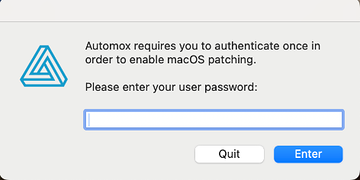
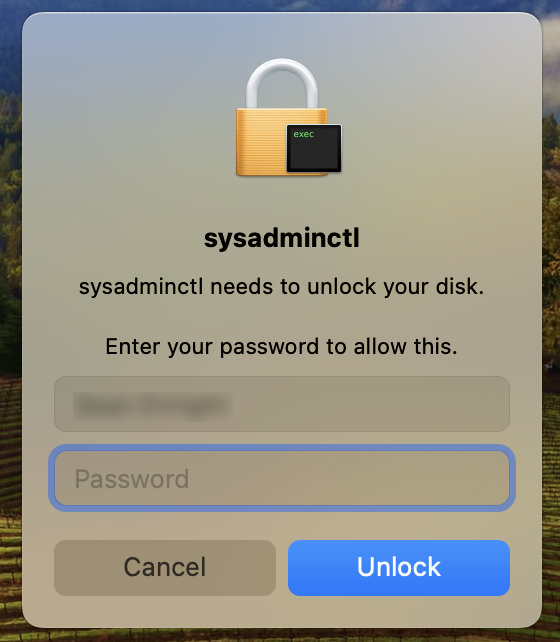
The next time the device is scanned (configurable in the Automox Console), the service account will be created. If the local user has administrator privileges and secure token access, they will be prompted to enter their password.
This is a one-time action. After you enter your password, the Automox service account is granted secure token access to install current and future macOS patches.
All macOS updates can now be installed using the agent. The Automox console will update to show the device is fully compatible after the next device scan.
- To disable the user prompt, run the following command:
sudo /usr/local/bin/amagent --automox-user-prompt disable- To disable the creation of an Automox managed service account, run the following command:
sudo /usr/local/bin/amagent --automox-service-account disableAutomox Service Account Details
The Automox service account is only used on Apple Silicon Mac devices. However, the account is not created by default.
Account Name
The Automox service account is created with the following name:
- Short name: _automoxserviceaccount
- Long name: Automox Service Account
This account is visible on the pre-boot screen and in the user accounts table. Apple does not allow FileVault accounts to be hidden on the initial login screen.
Account Password
When the Automox agent creates the account, the agent also generates a password for the account.
The randomly generated password is a minimum of 32 characters long, including alphanumeric characters and special characters.
Password Security
The service account password is randomly generated and is unique to that device. No two devices have the same password.
Automox encrypts the password and stores it locally on the device. No credentials are stored in the Automox cloud; the password never leaves the device.
Password Rotation
Automox rotates the password after every software update and also when the password is used.
A random password is generated for each device.
For additional help, please submit a support request through the customer portal.
Apple Silicon Onboarding
When Apple Silicon Mac devices are not properly configured, a banner appears in the console. Follow the instructions to automatically create a worklet.

- This solution is not for organizations that do not give their end users admin rights.
- You must not already have a worklet with the same name as the one automatically generated through the onboarding process.
If you choose to manually configure devices, you will be guided to this article and you will need to follow the instructions according to your preferred method. See One-time Action Required.
